
A Simple Guide to Upsell Offer Types in Essential Upsell
Essential Upsell helps you increase your store’s revenue by showing targeted upsell offers at the right moment.
In this guide, we’ll explain the different upsell offer types available in the app, how they work, and what you need to do to make them appear correctly. Everything is explained step by step in a simple, beginner-friendly way.
📌 Important Things to Know Before You Start
There are four main upsell types:
- Product Page
- Cart Page
- Post-Purchase
-
Pop-up
To set them up:
-
Make sure the app embed is enabled in your Shopify Theme Editor → App embeds
Requirements:
- Offer products must be in stock or inventory tracking disabled
-
Products used as triggers and offers must be live on your store
For detailed instructions on how to create an upsell, check our step-by-step video tutorial: Watch here
1️⃣ Product Page Upsells
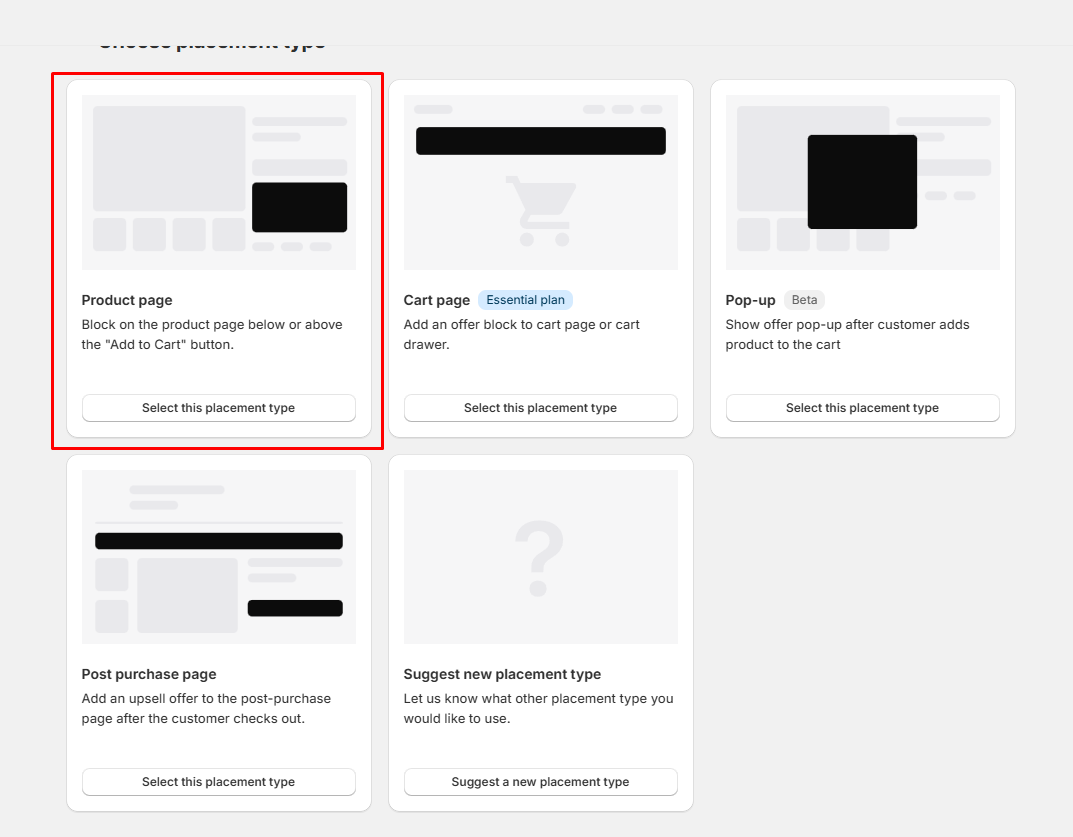
Product page upsells appear directly on the product detail page, typically near the Add to Cart button.
There are 3 different types of product page upsells you can use:
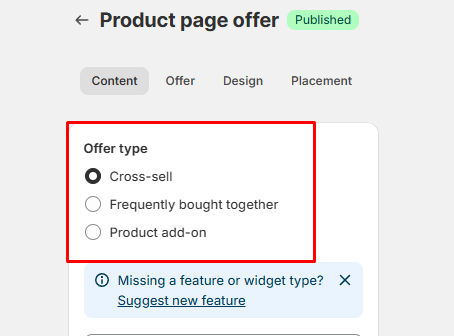
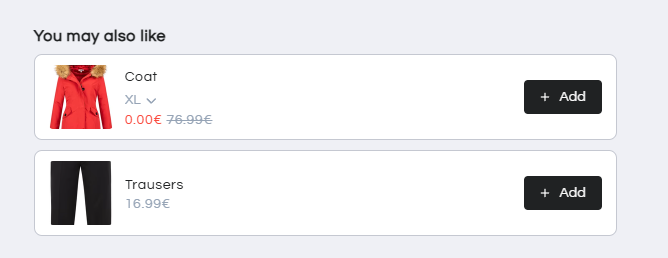
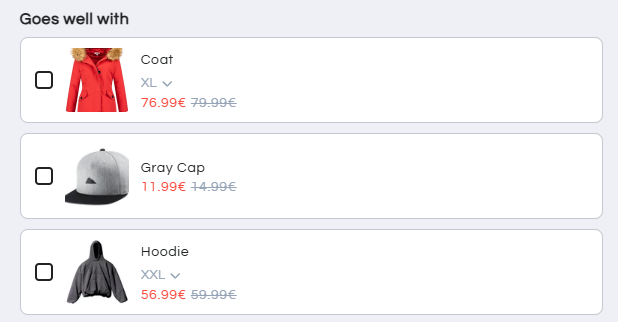
Cross-sell offer type:
Cross-sell upsells are recommended when you want to increase your average order value by suggesting products that naturally complement what your customer is already buying.
Ideal scenarios include:
- To show items that go well with the product the customer is viewing
- To recommend additional items before adding to the cart
-
When you want to promote related products to the trigger product
They work best when the suggested products are relevant and useful to the customer, making it more likely they’ll add them to their order.
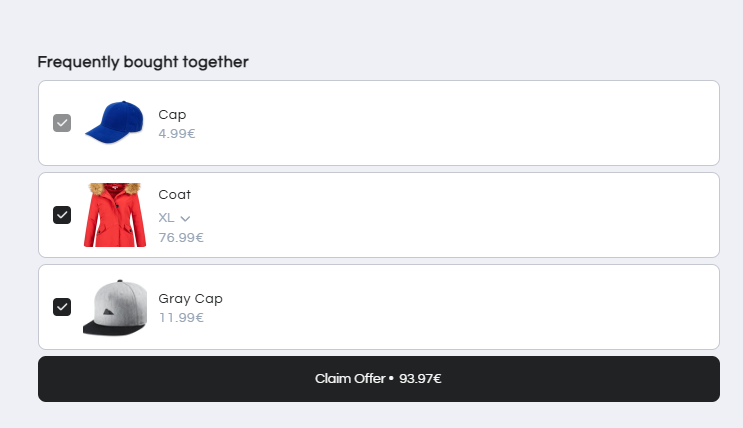
Frequently Bought Together Upsells Offer Type
The Frequently Bought Together upsell lets you recommend complementary products on your product pages, with the suggested items pre-selected by default.
Ideal scenarios include:
- Allow customers to add the main product and recommended items to their cart in a single click, making checkout smoother.
- Encourage the purchase of multiple related products together.
- Improve the shopping experience while increasing sales volume and average order value.
They work best when the recommended products naturally complement the main item, making it easy for customers to add multiple related products to their cart in a single click.
Add-On Upsells Offer Type
The Add-On Upsell type lets customers select additional complementary products directly on the product page.
Ideal scenarios include:
- When a customer chooses add-on products on the Product Page and clicks Add to Cart, both the main product and selected add-ons are added simultaneously, making checkout seamless. On the Cart Page, when the customer checks the checkbox, the upsell item is added straight away.
- Integrating the offer directly into the product page increases visibility and convenience, which can boost conversion rates and overall sales.
-
Supports adding multiple products at once, perfect for promoting bundles or complementary items without creating separate product bundles manually.
They work best when the add-on products enhance the main item, making it simple for customers to select and add multiple complementary products to their cart in a single step.
2️⃣ Cart Page Upsells
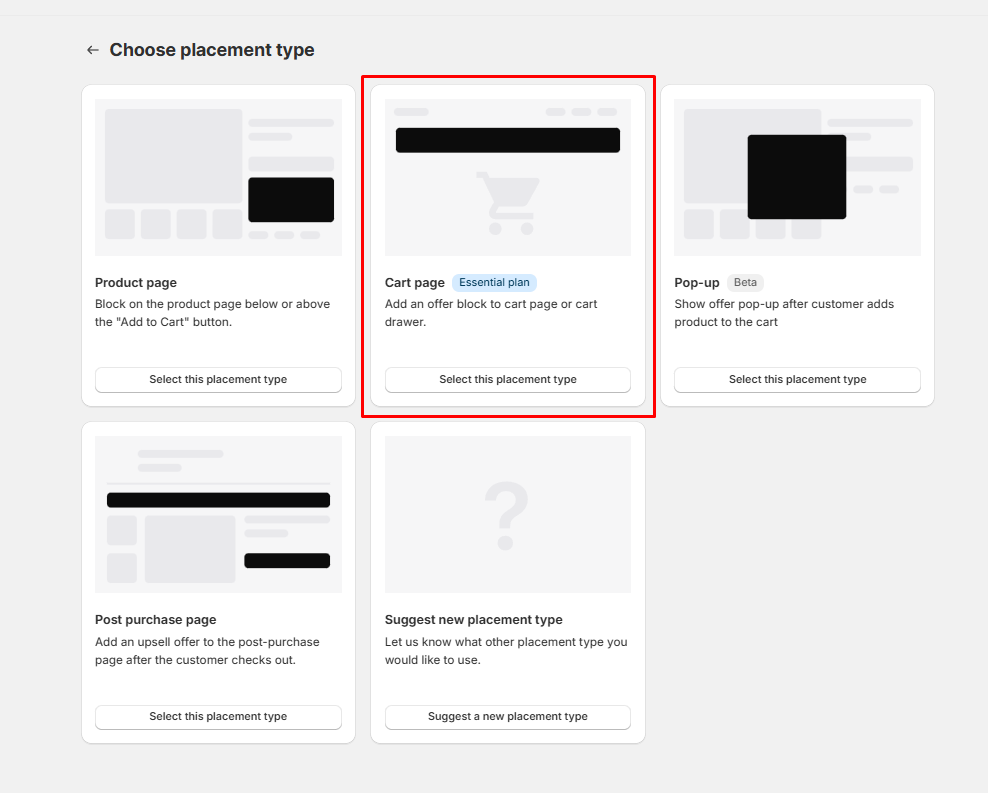
Cart page upsells show on the cart page or cart drawer before checkout.
There are 2 different types of cart page upsells you can use:
-
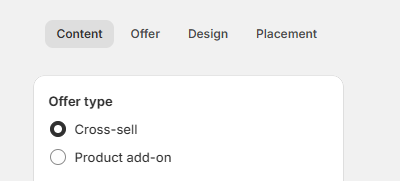
Cross-Sell Offer Type: Recommends complementary products before checkout, encouraging customers to add more items and increase average order value from cart.
-
Add-On Offer Type: Let customers select related products based on triggers that were added to the cart directly on the cart page or cart drawer, making checkout smoother and boosting sales.
Ideal scenarios include:
- Showing relevant upsell offers just before checkout, when customers are reviewing their cart and are most open to adding extra items.
- Increasing average order value by recommending complementary or add-on products directly from the cart page or cart drawer.
-
Enhancing the checkout flow by allowing customers to add related products without navigating away from the cart.
They work best when the suggested products are closely related to the items already in the cart, making it easy and natural for customers to add them before completing their purchase.
3️⃣ Post-Purchase Upsells
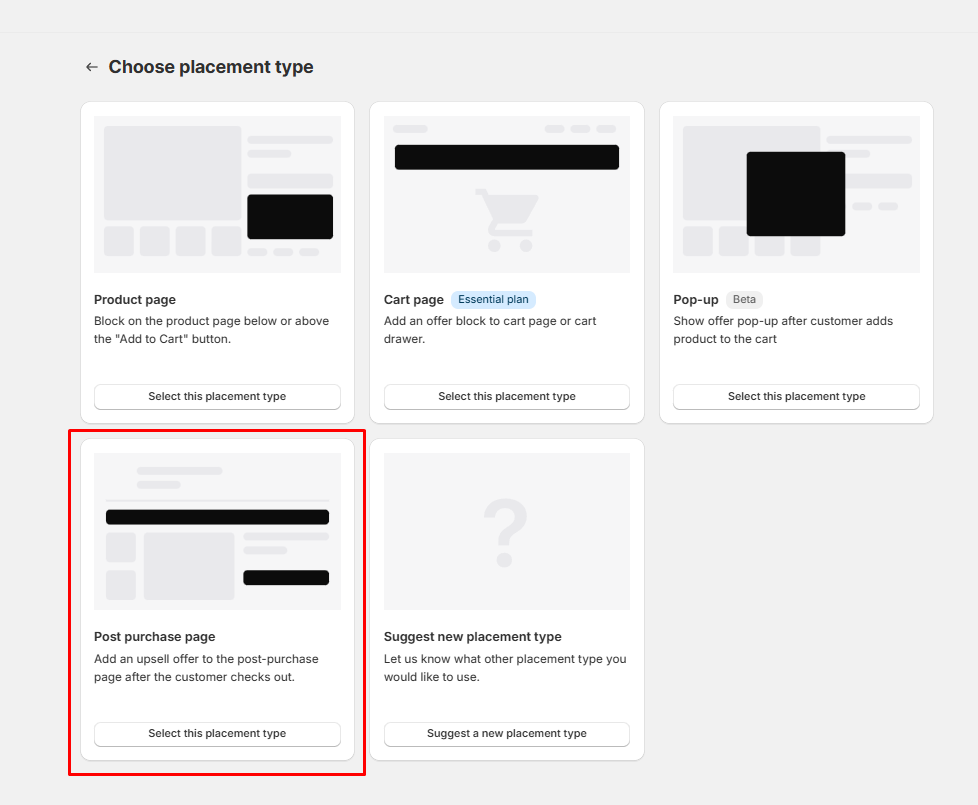
Post-purchase upsells display after the customer completes checkout and payment.
- Shopify does not allow upsells during the checkout process itself
- Post-purchase offers are the only type allowed during the checkout process (the Post Purchase Offer appears after the checkout and before the "Thank you" page).
Ideal scenarios include:
- Offering an additional product immediately after checkout, when the customer has already completed payment and is more likely to make an impulse add-on purchase.
- Increasing order value without disrupting the checkout flow, since the upsell appears after the order is placed.
-
Promoting complementary or last-minute add-ons without requiring the customer to re-enter payment details.
They work best when the post-purchase offer is highly relevant to the original order, making it easy and appealing for customers to accept an extra item with a single click after checkout.
Please note that there are several limitations from Shopify’s side that can prevent the offer from rendering correctly.
You can refer to this guide: Why Post Purchase Offers Don’t Appear – Troubleshooting Guide
4️⃣ Pop-Up Offers
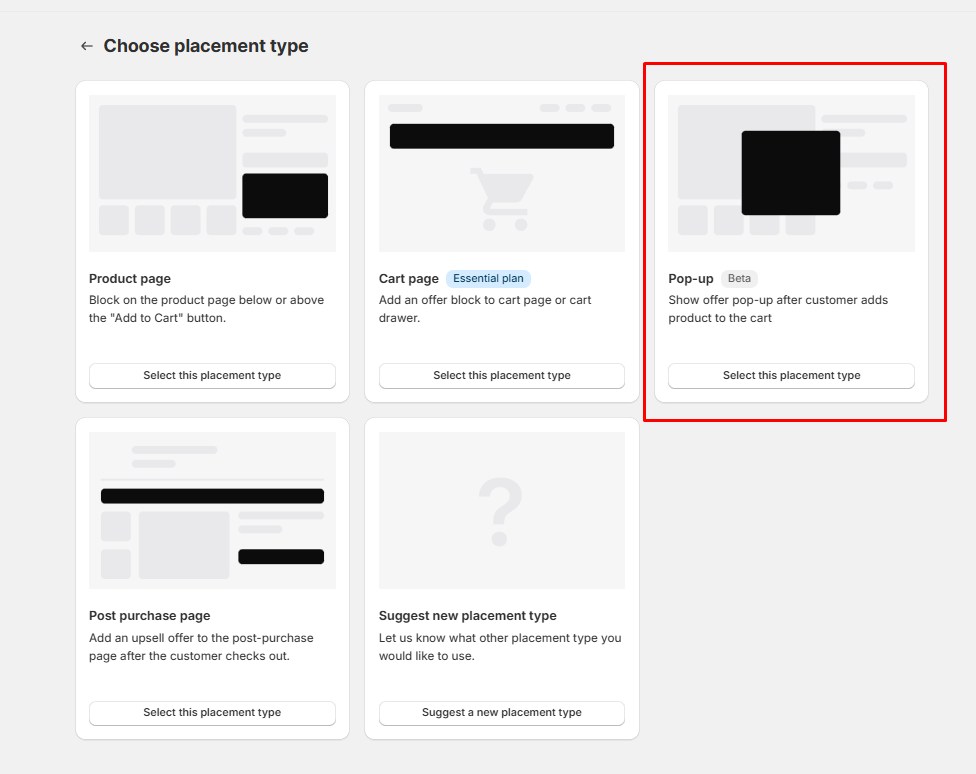
Currently, the app supports pop-up style offers:
- On product pages, the pop-up can appear when clicking Add to Cart
- On cart pages or the cart drawer, the pop-up can appear after clicking Checkout
Just like the previous upsell, three offer types are available for pop-up upsells:
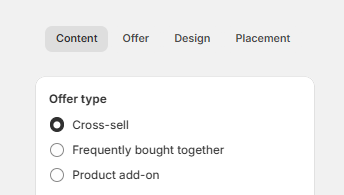
Cross-Sell Offer Type: Displays complementary product suggestions in a pop-up at key moments (such as when clicking Add to Cart or Checkout), encouraging customers to add relevant items and increase average order value before moving forward.
Add-On Offer Type: Allows customers to quickly select related add-on products from a pop-up triggered by their action, making it easy to include extra items without leaving the current flow.
Frequently Bought Together Offer Type: Shows a pop-up with commonly purchased product combinations, enabling customers to add the main product and recommended items together in a single action, helping boost order value with minimal friction.
Ideal scenarios include:
- Prompting customers with a last-minute offer when they click Add to Cart on a product page.
- Suggesting an upsell when the customer clicks Checkout from the cart page or cart drawer.
-
Capturing attention at key decision moments without interrupting the browsing experience.
They work best when the offer is simple, highly relevant, and time-sensitive, encouraging customers to accept the upsell quickly before moving to the next step.
✅ Final Summary
Essential Upsell gives you multiple ways to increase sales by showing the right offers at the right moment in the customer journey:
-
Product Page Upsells appear directly on the product page near the Add to Cart button and can also trigger pop-up offers.
-
Cart Page Upsells are displayed on the cart page or cart drawer before checkout, with optional pop-ups shown after the Checkout button is clicked.
-
Post-Purchase Upsells are shown after payment is completed and are the only upsell type allowed during the checkout process.
-
Pop-Up Offers are action-based and appear when customers click Add to Cart on product pages or Checkout on the cart page or cart drawer.
When configured correctly, these upsell types help you present relevant products at key decision points, improve the shopping experience, and consistently increase your store’s average order value and overall revenue.
If you have any questions about the type of offers available on the Upsell app, our support team is always happy to help and available 24/7 at support@essential-apps.com