
How to Translate Estimated Delivery Widget
If your store supports multiple languages, translating your Estimated Delivery Widget helps customers clearly understand delivery expectations in their own language, which builds trust and reduces friction before checkout.
With Essential Estimated Delivery, translations are managed directly inside each widget.
Where to Find Translations
All translations are handled inside the widget’s Content tab.
👉 Important: Translations are applied per widget.
If you use different widgets per market, make sure to translate each one accordingly.
Step-by-Step: Translate Your Estimated Delivery Widget
1. Open the Widget Content Tab
2. Scroll to the Translations Section
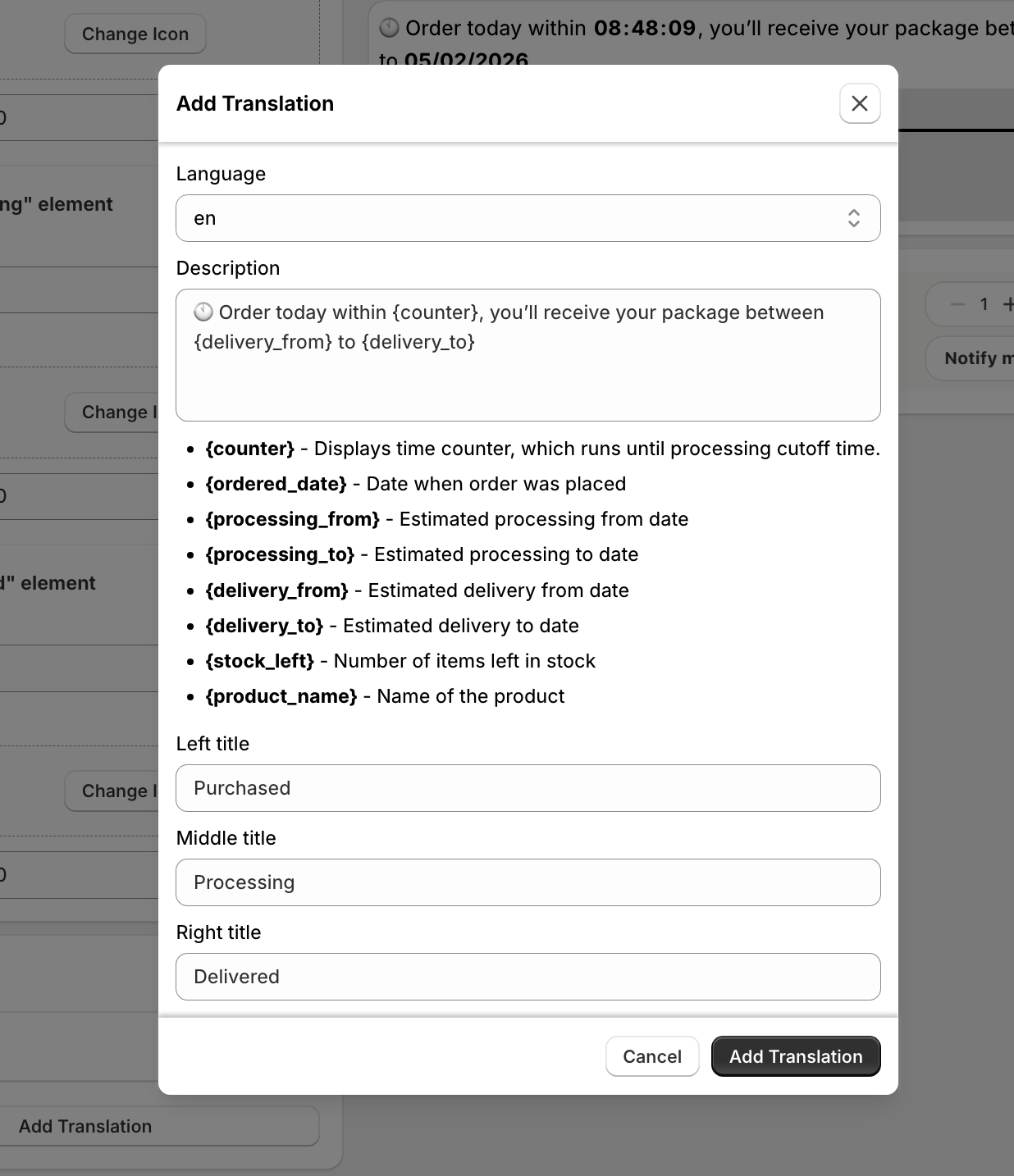
At the bottom of the Content tab, you’ll find the Translations card.
This is where all widget text can be localized.
3. Select the Language
- In the Translations card, choose the language you want to add or edit.
- The fields will update to match the selected language.
Each language is handled independently.
4. Translate the Widget Text
Once a language is selected, translate the following fields:
- Description
- Titles (such as delivery date labels or supporting messages)
Simply replace the text with your translated version.
💡 Tip: Keep translations clear and natural for the local audience.
5. Save Your Changes
After finishing the translations, make sure your widget is Published.
Your translated content will automatically display for customers using that language.
Best Practices for Translations
- ✔ Match the language to the market whenever possible
- ✔ Review translations after changing delivery logic or dates
- ✔ Keep delivery messages short and easy to understand