
Trust Badges Not Showing – Main Reasons and Solutions
If your Trust Badges are not appearing on your store, it’s usually related to badge status, placement settings, theme configuration, or plan limitations. This article walks through the most common reasons and how to fix them step by step.
📌 Important Things to Check First
Before troubleshooting further, make sure that:
- The badge is Published (not in Draft)
- The badge placement includes the product you are viewing
- The Essential Trust Badges app-embed is enabled in your active theme
- The Geolocation Targeting is set up correctly, and you are browsing from the targeted country
- You are not trying to publish a cart page badge on the starter or free plan (an essential plan is required for a cart page Trust Badge)
1️⃣ The Badge Is Still in Draft
If a badge is saved as Draft, it will not appear on your storefront.
How to fix it:
- Open Essential Trust Badges & Icons
- Open the badge you want to display
-
Click Publish

Once published, refresh your product page and check again.
2️⃣ The Badge Placement Is Set Incorrectly
Trust Badges only appear where they are assigned.
What to check:
- Open the badge
- Go to the Placement tab
-
Check which option is selected
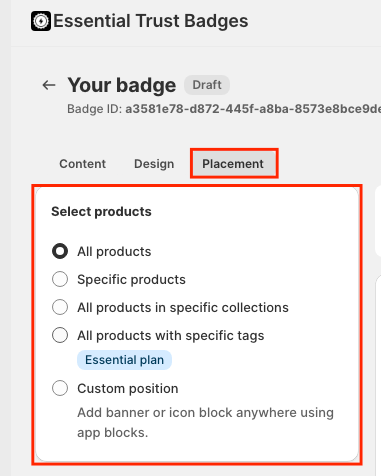
How to fix it:
- Select All products to quickly test if the badge appears.
- If Custom position is selected, the badge must be placed manually using one of the following methods:
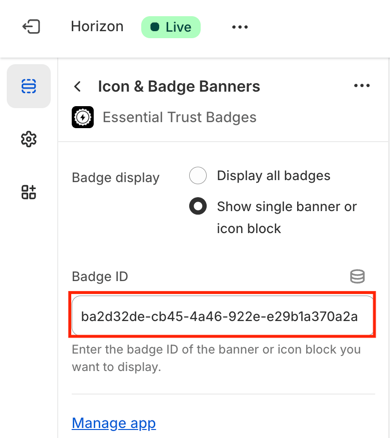
- Add the App Block in the Theme Editor and paste the ID into the App Block settings. Make sure the second option “Show single banner or icon block” is selected.
- Or place the badge using the snippet provided in the Placement tab, added either directly in the theme file or inside a Custom Liquid app block.
3️⃣ The App-Embed or Badge Block Is Not Enabled
If the app-embed is turned off, the Trust Badge will not load.
How to enable the app-embed:
- Go to Online Store → Themes
- Click Customize
- Open Theme settings → Apps
-
Enable Essential Trust Badges
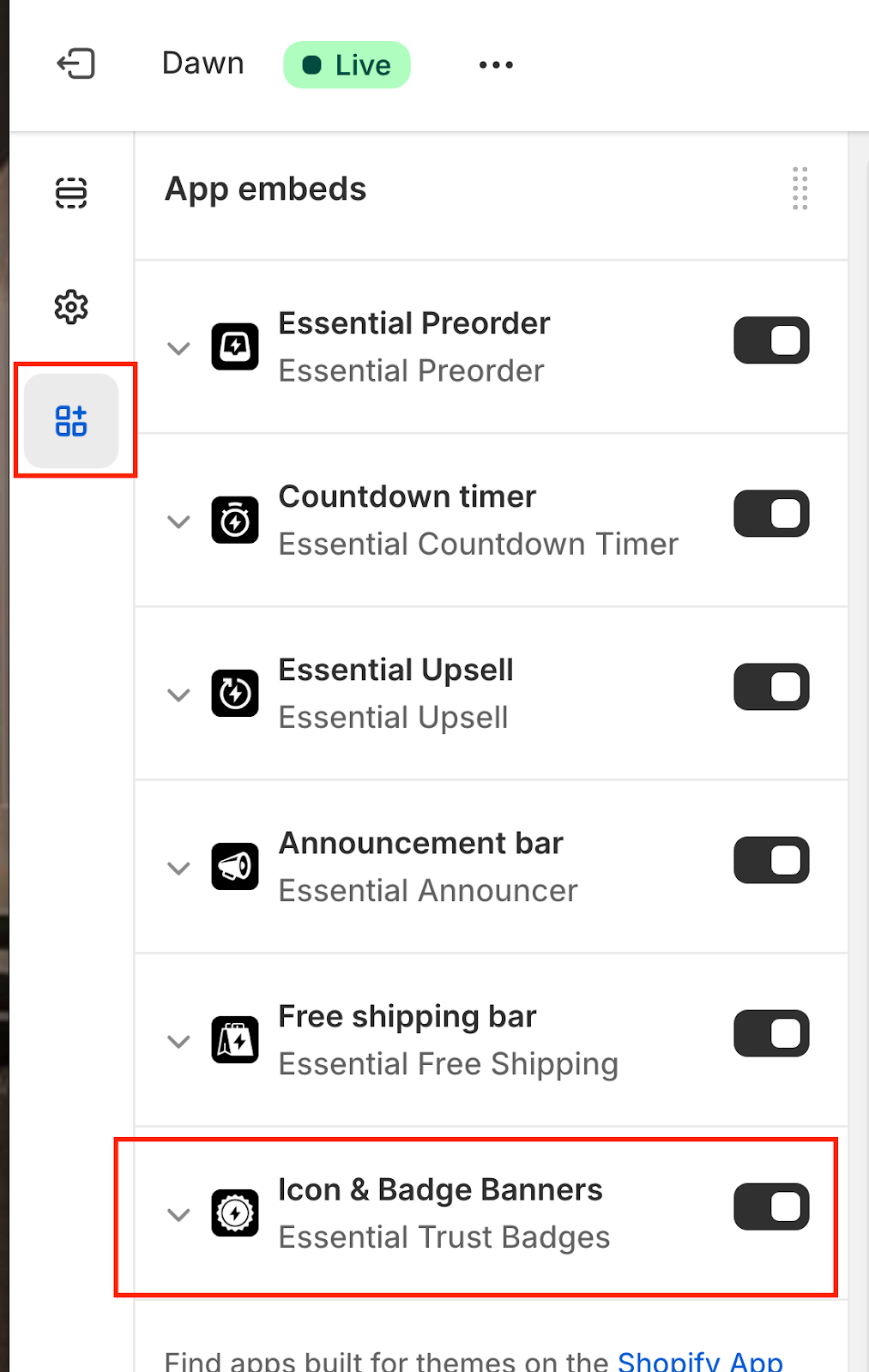
- Save your changes
4️⃣ Monthly Views Limit Has Been Reached
Trust Badges use a monthly views-based system. A view is counted every time the badge loads on a page.
What happens when the limit is reached:
- You will not be charged
- You will receive an email notification
-
If the plan is not upgraded within 3 days, the badges are unpublished automatically
How to fix it:
- Upgrade your plan, or
- Wait until the views reset on the 1st day of the next month
5️⃣ Cart Badges Are Not Available on the Free and Starter Plans
Cart Page and Cart Drawer badges are available only on the Essential or Professional plans.
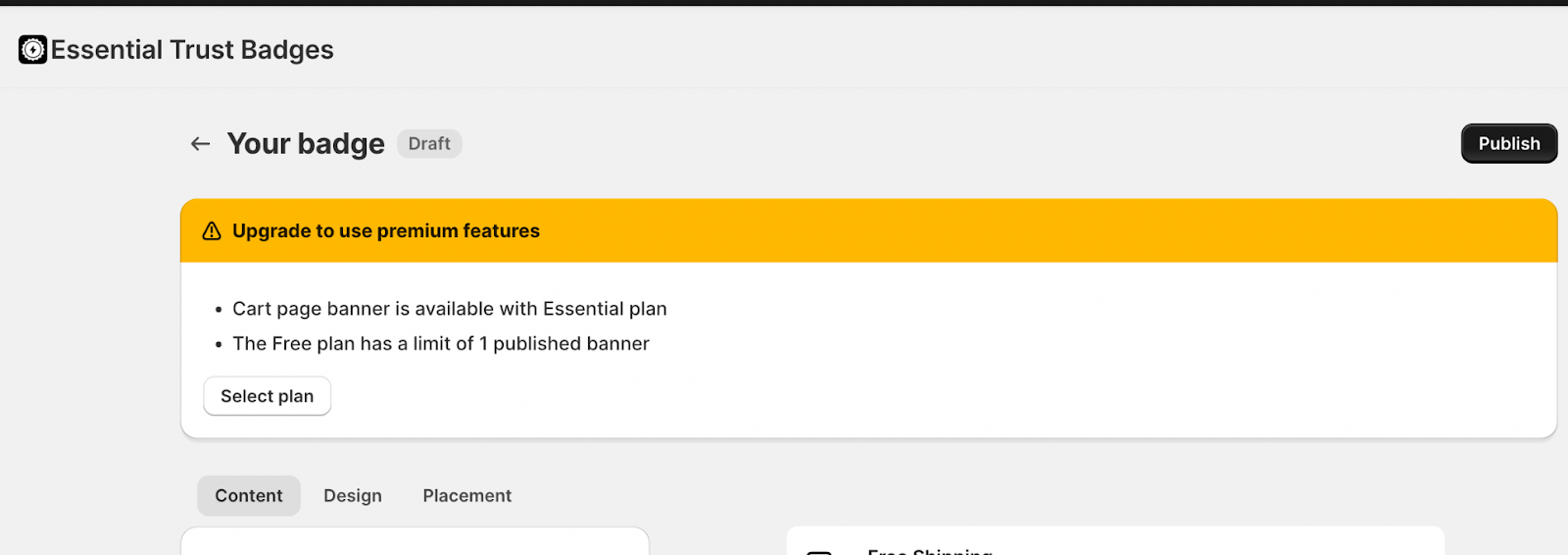
If your store is on the Free plan, the badge will not appear in the cart.
6️⃣ The Badge Is Configured for Specific Countries Only
If geolocation targeting is enabled, the badge will only appear to visitors from the selected countries.
If you want the badge to show in multiple regions, you need to create separate badges for each country or country group. Badges set to “All Countries” will only appear in locations that are not already covered by other badges with specific country targeting.
7️⃣ Theme or App Conflicts
Some apps (such as Preorder apps, Bundle apps, or Sticky Cart apps) change the layout of the product page and may prevent automatic badge placement.
How to fix it:
- Add the Trust Badge as a manual app block, or
- Use Custom position and place the badge using the provided HTML snippet
8️⃣ Incorrect Badge ID Used (Custom Position)
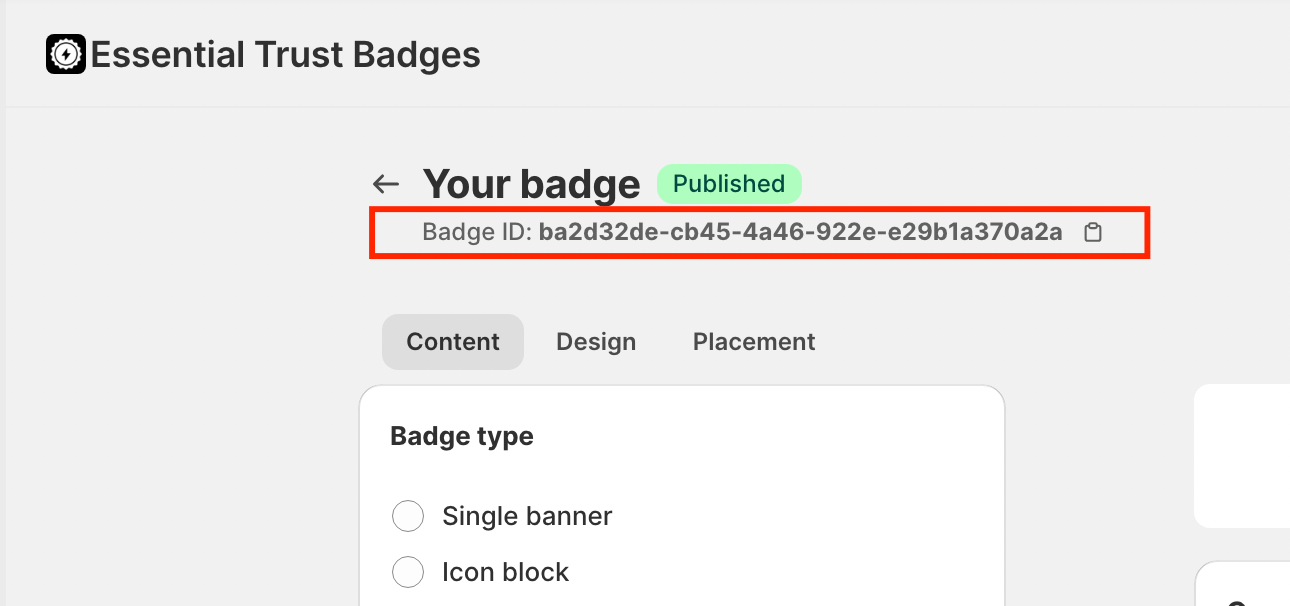
If you are using Custom position and the Badge ID in the app block is incorrect, the badge will not load.
How to fix it:
- Open the badge
-
Copy the Badge ID
-
Replace the ID in the app block.
- Save the theme and refresh the page
If you’ve checked all of the above and the Trust Badge is still not showing, please contact our support team. We’ll be happy to help you get everything set up correctly 💙