
How to Place the Trust Badge & Icons Widget Inside the Cart Drawer or Cart Page
Essential Trust Badges & Icons allows you to display trust badges inside the Cart Page or Cart Drawer, helping reassure customers right before checkout. This article explains how to create a cart badge and how to place it correctly.
📌 Important Things to Know Before You Start
- Your store must be on the Essential plan or higher
- Our app supports theme-based cart drawers only; third-party cart drawer apps are not supported.
📌 Step 1: Create a Trust Badge for the Cart
Before placing a badge in the cart, you need to create and publish it first.
Steps:
- Open Essential Trust Badges & Icons
-
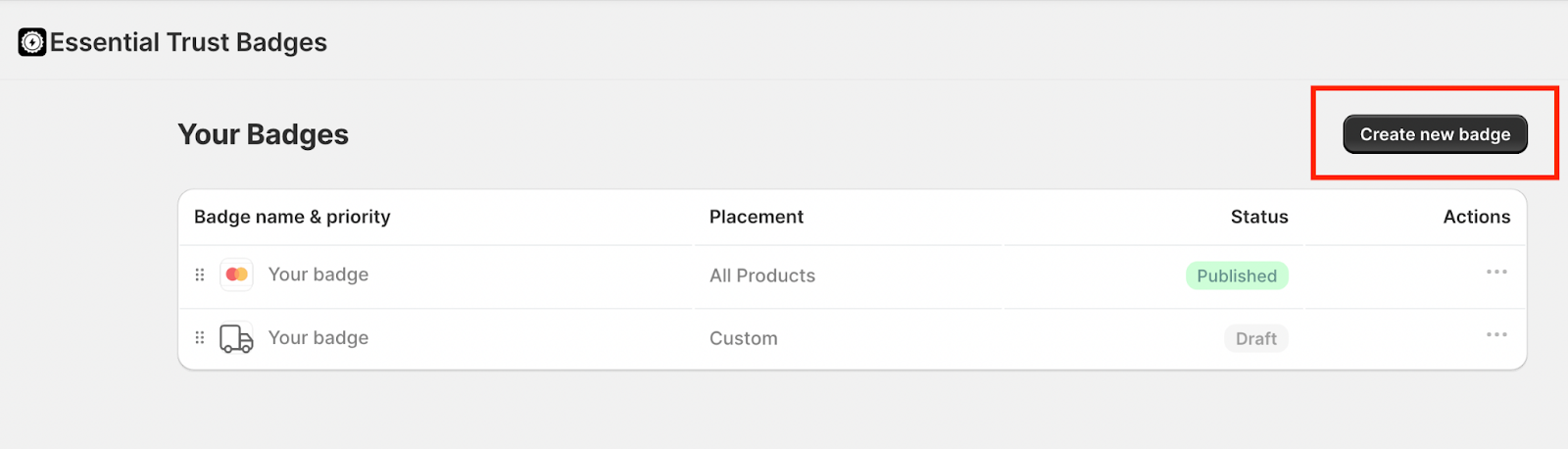
Click Create new badge
-
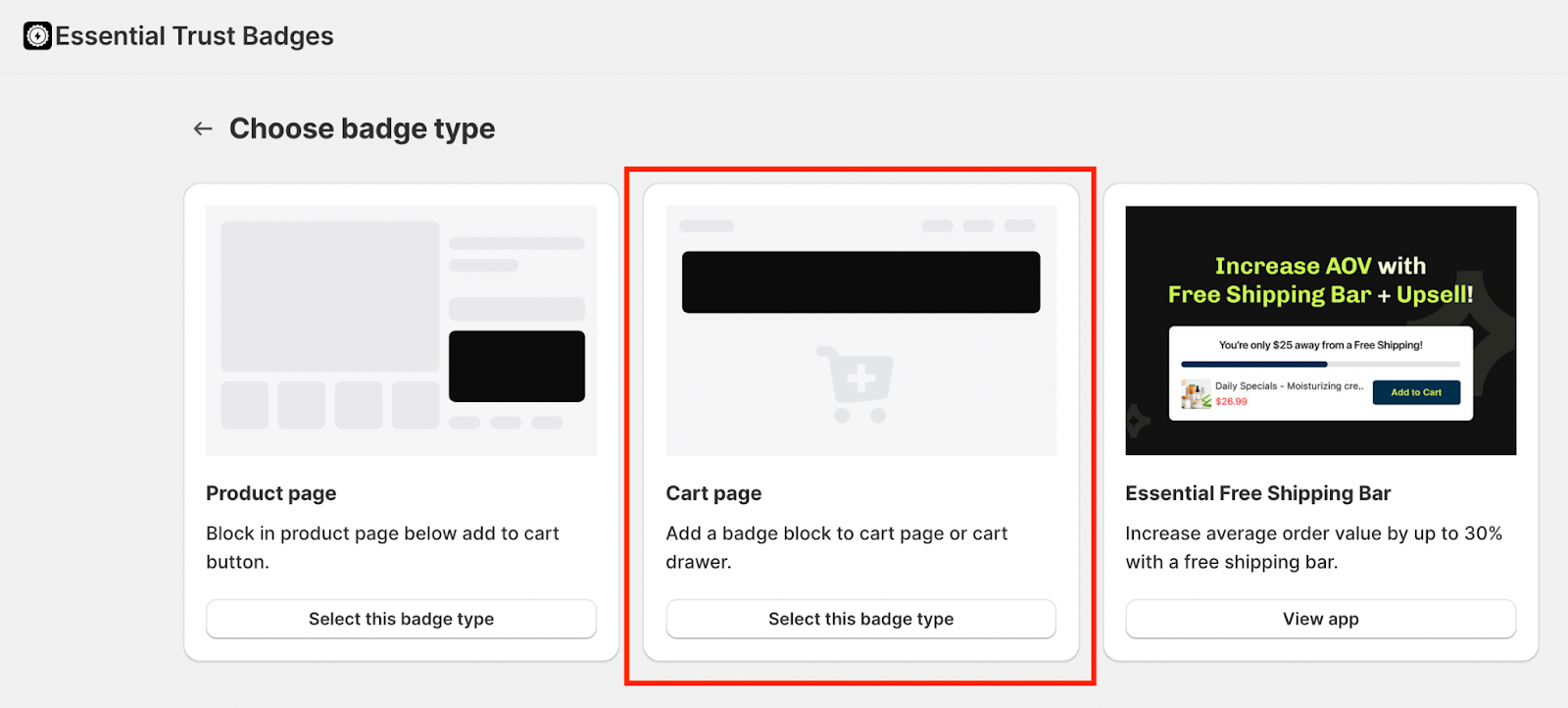
Choose Cart Page as the badge type
-
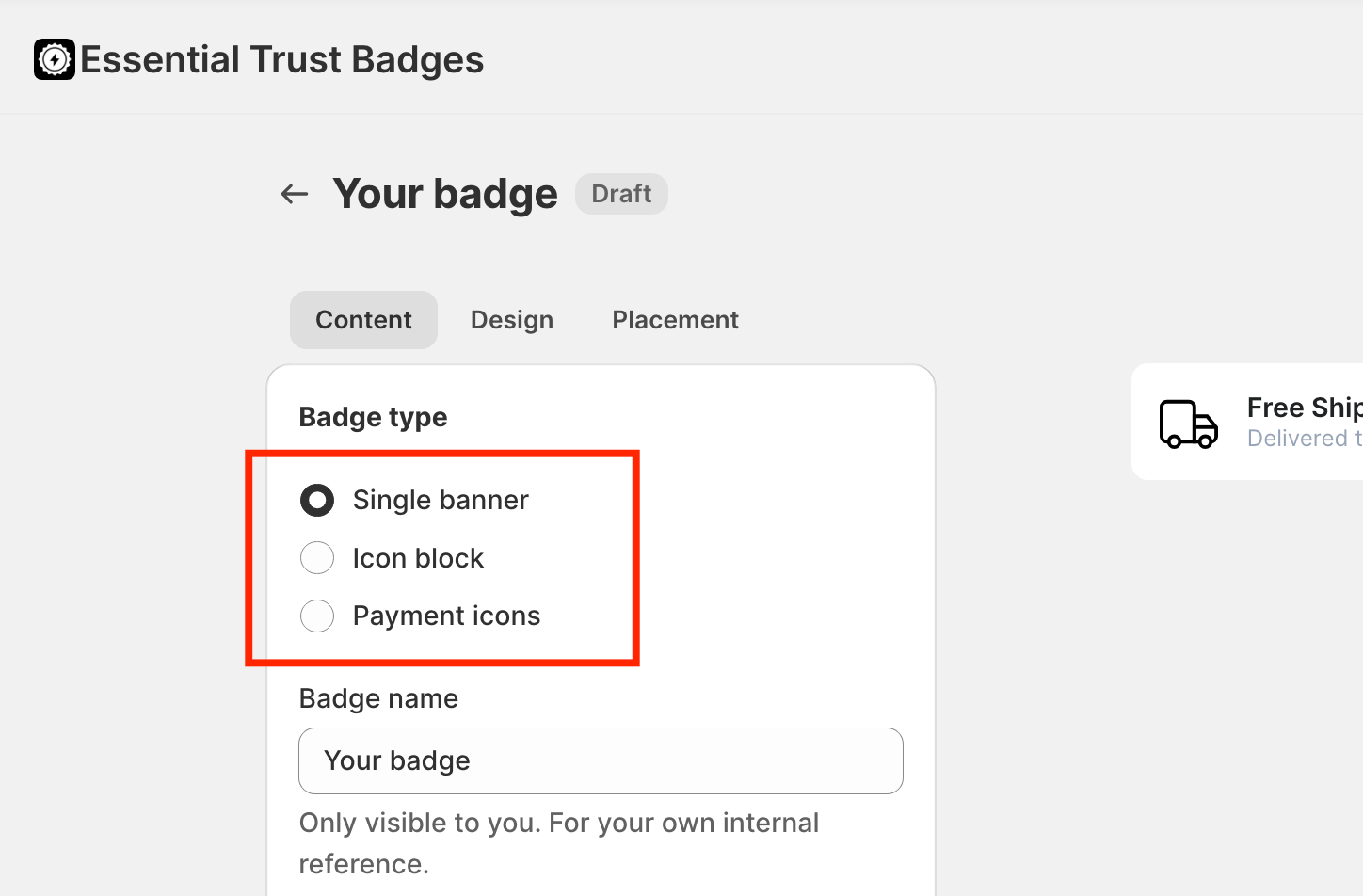
Select the badge layout (single banner, icon block, or payment icons)
- Customize the content and design as needed
- Click Publish
Once published, the badge will be available to place inside the cart.
📌 Step 2: Choose the Cart Placement Position
After creating the cart badge, go to the Placement tab inside the badge editor.
You will see the following options:
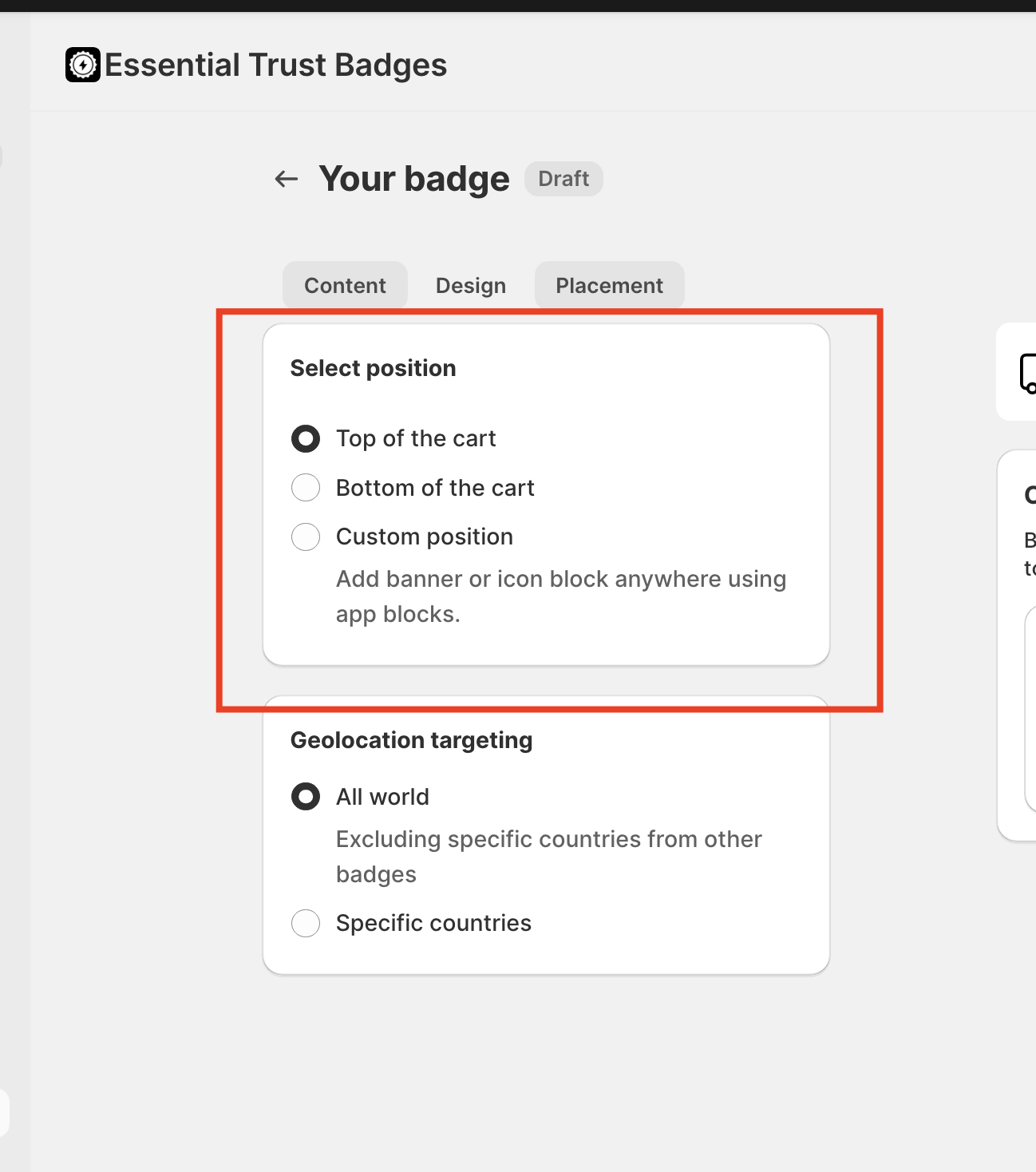
🔹 Top of the cart
- Displays the Trust Badge at the top of the cart
-
Recommended if you want the badge to be immediately visible when the cart opens
🔹 Bottom of the cart
- Displays the Trust Badge at the bottom of the cart
-
Commonly used near totals or checkout buttons
🔹 Custom position
- Allows you to place the badge manually on the Cart Page using code or manual placement
- Recommended if you want full control over placement on the actual cart page
⚠️ Note: Custom position applies to the Cart Page only and does not support Cart Drawer placement; the Trust Badge will no longer render inside the Cart Drawer.
Select the option that best fits your store layout and save your changes.
📌Step 3: Placing the Trust Badge Using Theme Editor
The badge will automatically appear in the cart based on the selected position (Top or Bottom of the cart).
To confirm placement:
- Go to Online Store → Themes
- Click Customize
- Open the Cart Page or Cart Drawer
-
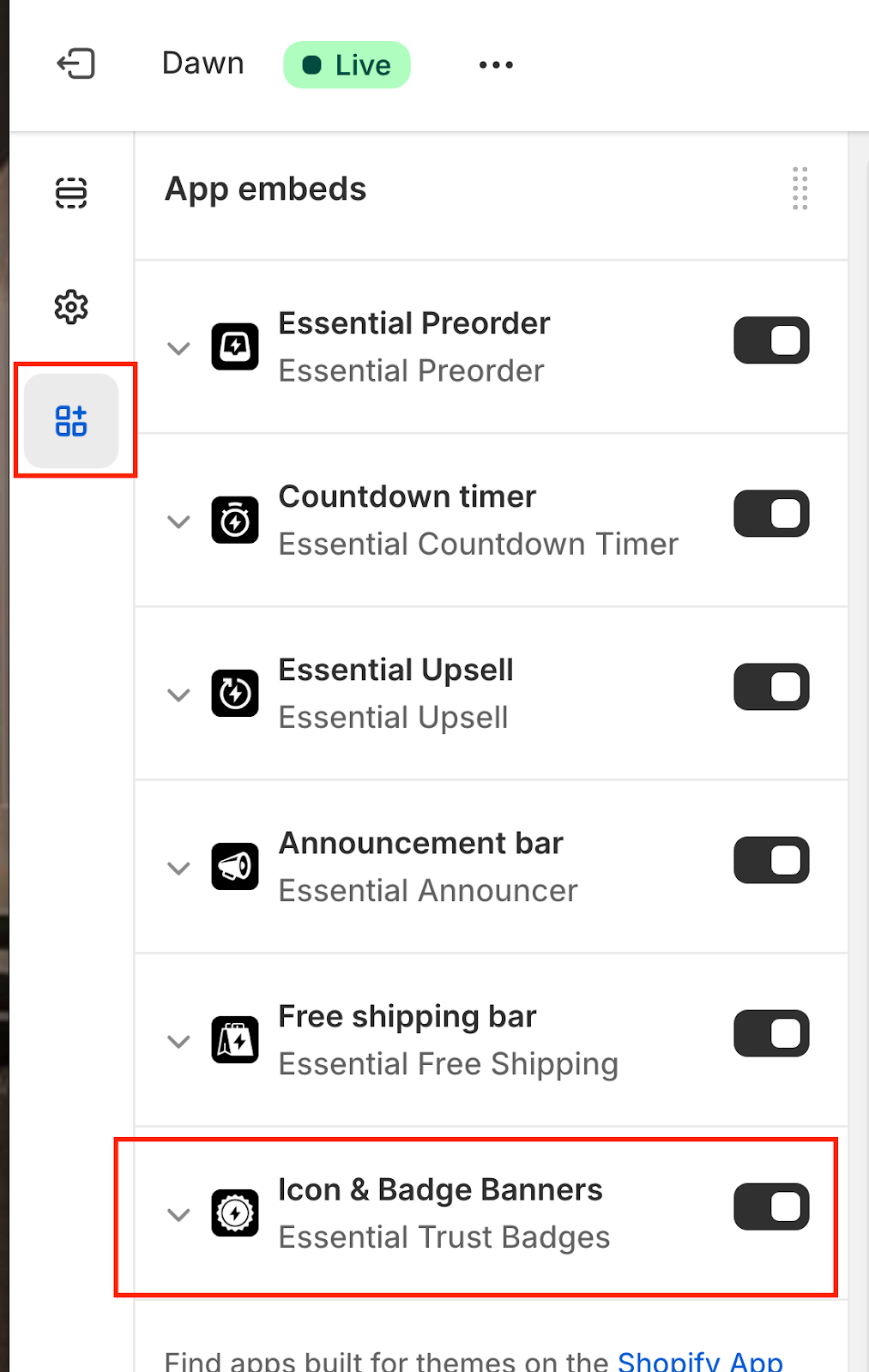
Make sure the Essential Trust Badges app-embed is enabled
📌 Step 4: Using Custom Position (If Needed)
Use Custom position if:
- Your theme or cart drawer does not support automatic placement
- You want to insert the badge in a specific custom location
Steps:
- Go to Shopify Admin → Online Store → Themes
- Click Customize
-
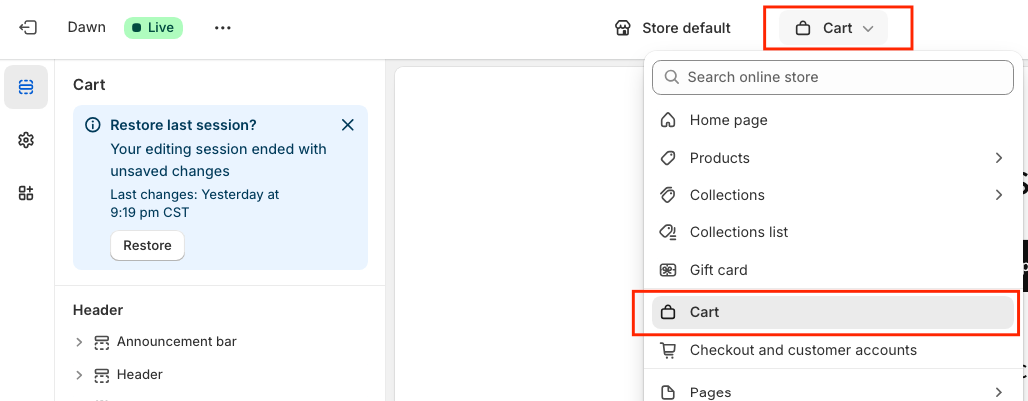
From the page selector at the top, open the Cart Page
-
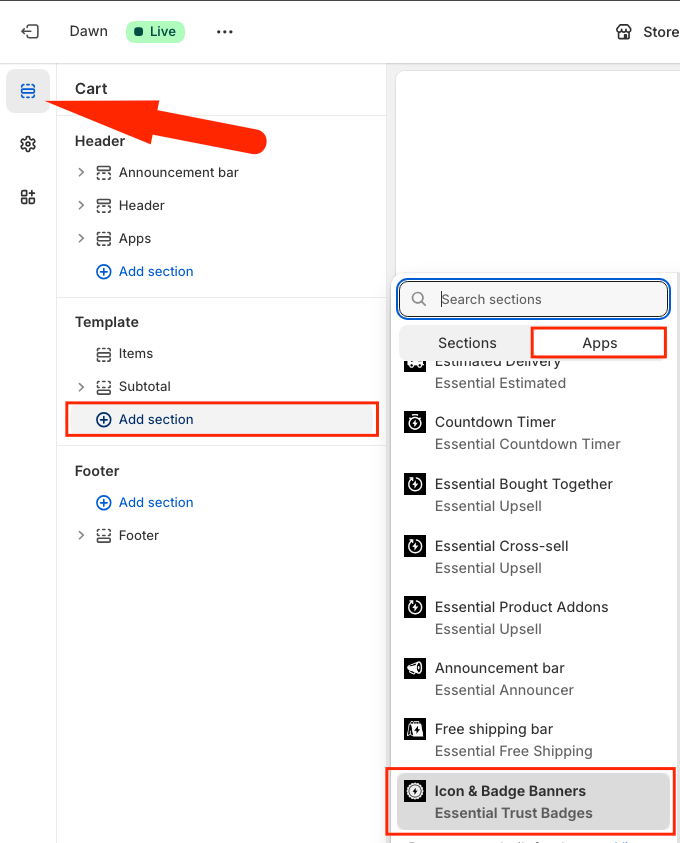
In the left sidebar, click Add section then select Essential Trust Badges.
-
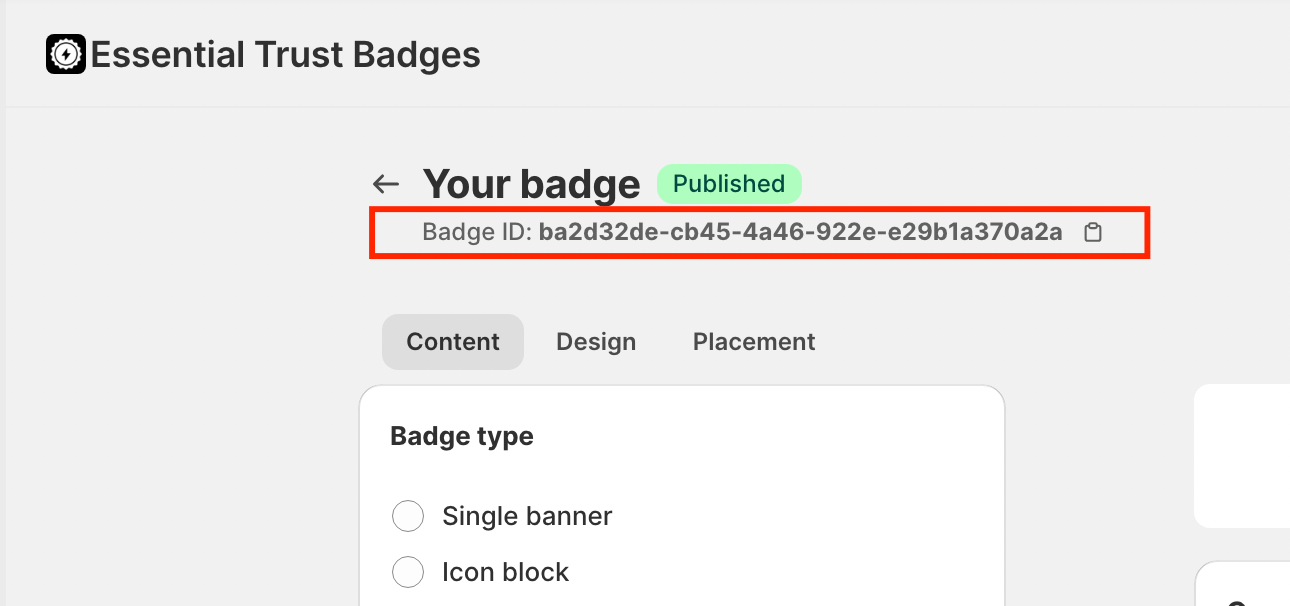
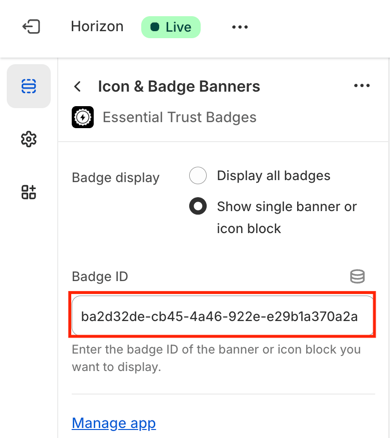
Copy the Badge ID
-
Place the ID in the app block and choose "Show single banner or icon block":
- Drag the block to your preferred position
-
Click Save
Refresh your cart page to see the Trust Badge.
If you need help placing Trust Badges inside your cart or cart drawer, feel free to reach out! We’re happy to assist 💙