
How to Add an Image or Logo to the Essential Countdown Timer
Adding an image or logo to your Countdown Timer helps draw attention, reinforce branding, and increase visual impact. You can use images such as brand logos, promotional graphics, or campaign visuals directly inside the timer.
This article explains how to add an image to your Countdown Timer and where this option is available.
📌 Important Things to Know Before You Start
- Images can be added inside the timer design
- Image support is available through the Design tab
- Images are purely visual and do not affect timer logic or behavior
- The image will appear together with the timer content
1️⃣ Open the Countdown Timer You Want to Edit
- Open Essential Countdown Timer
-
Select an existing timer
or click Create a new timer
- Go to the Design tab
2️⃣ Enable Image Background or Image Element
Inside the Design tab, locate the Image Background section.
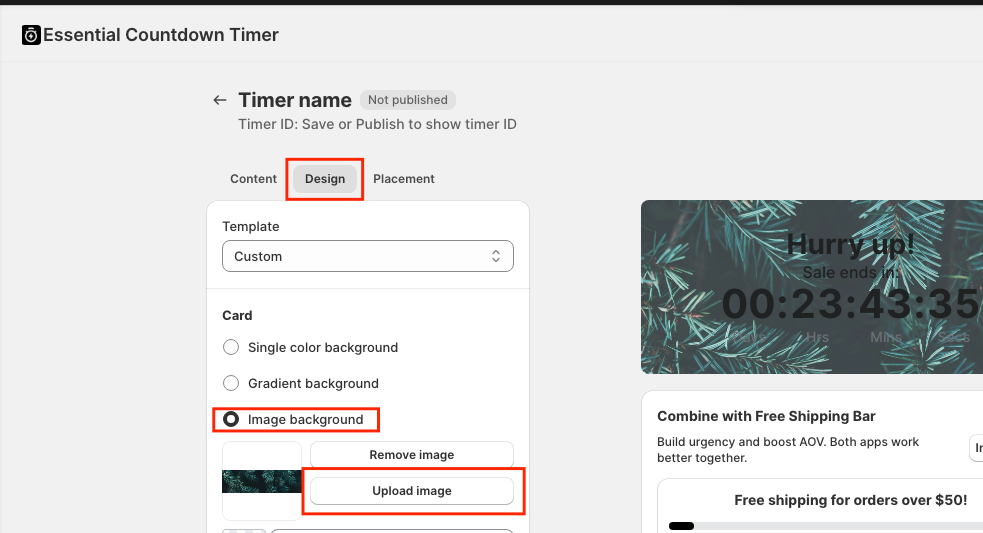
Depending on your template, you can:
- Switch the background type to Image background
- Upload an image or logo from your device
📌 Supported use cases include:
- Brand logos
- Sale banners
- Promotional images
Once uploaded, the image will appear behind or alongside the countdown timer preview.
3️⃣ Adjust the Image Appearance
After uploading the image, you can fine-tune how it looks by adjusting:
- Padding and spacing
- Border radius
- Text and timer colors (to ensure readability on top of the image)
- Font sizes for title, subheading, and timer values
📌 Tip:
Use high-contrast text colors when placing timers on image backgrounds to keep the countdown easy to read.
4️⃣ Preview and Publish the Timer
-
Use the live preview on the right side to review how the image looks
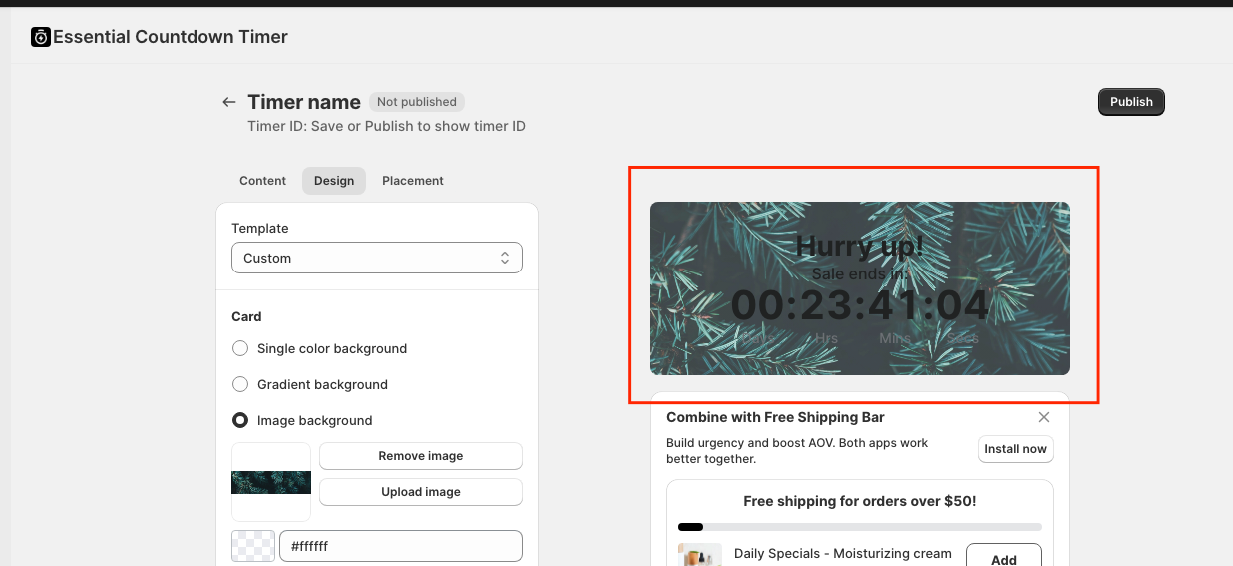
- If everything looks good, click Publish
📌 Note:
Theme fonts may not fully reflect in preview mode. Publish the timer to see the final result on your storefront.
⚠️ Common Issues and Tips
- If the image looks stretched or unclear, try uploading a higher-resolution image
- Keep important content away from the edges of the image
- Avoid overly busy images that make timer text hard to read
✅ Notes
- Images and logos can be added through the Design tab
- Images enhance visibility but do not affect timer behavior
- You can fully customize spacing, colors, and typography for clarity
- Always preview and publish to confirm the final appearance
If you need help choosing the best layout or image style for your campaign, our support team is always happy to help 💙