
How to Update Your Plan on Essential Countdown Timer (and How Timer Views Work)
Essential Countdown Timer uses a views-based pricing model, which means your plan is based on how many times your countdown timers are shown on your store each month.
In this guide, we’ll explain:
- How to upgrade or downgrade your plan
- How timer views are counted
- What happens when you reach your monthly limit
-
When views reset and what to expect
This will help you better understand your usage and avoid surprises 😊
Let’s walk through it step by step 👇
📌 Before We Start – A Few Important Things to Know
- All plan changes are handled directly by Shopify
- Views are not based on unique visitors
- Every time a timer loads, it counts as a view
- You will not be charged extra for exceeding your view limit
- If limits are exceeded and no upgrade is made, timers will be unpublished automatically 3 days after the email notification
- Views reset automatically on the 1st day of each month
1️⃣ How to Update Your Plan
You can change your plan at any time directly from inside the app.
Steps:
- Open Essential Countdown Timer
-
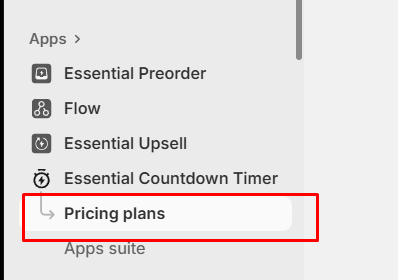
Go to Pricing plans from the left-hand menu
-
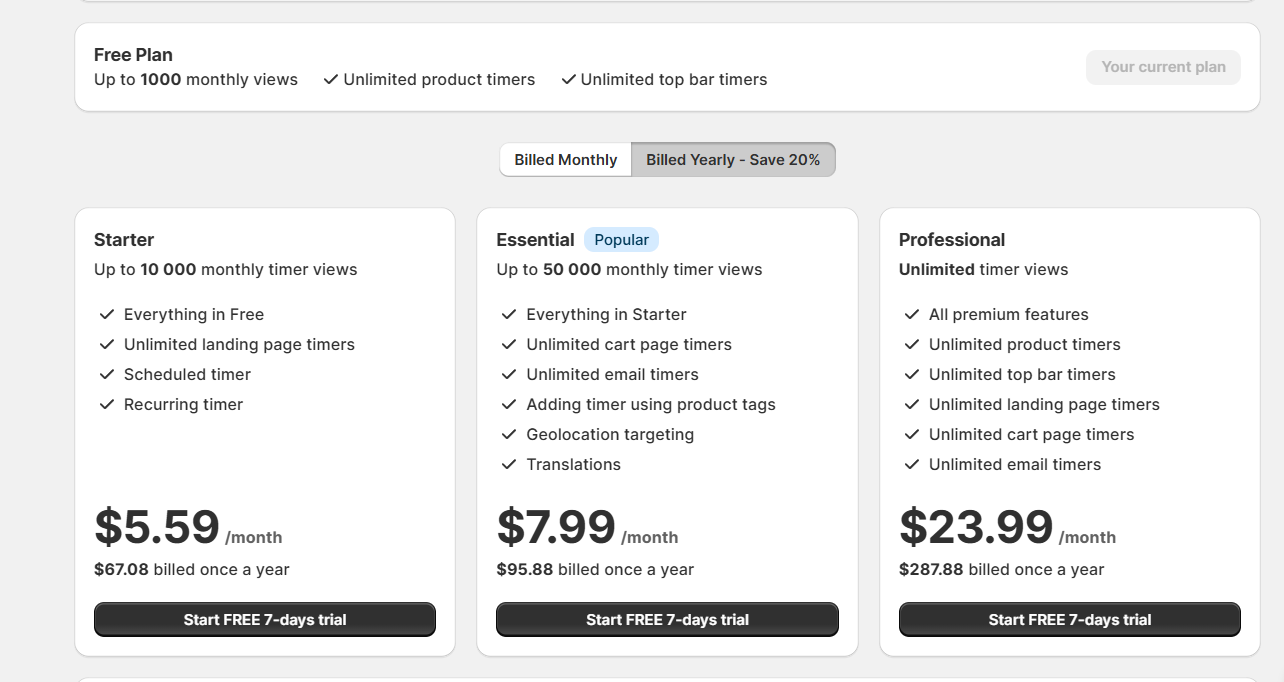
Choose the plan you’d like to switch to
-
Confirm the change in Shopify’s billing window
Once confirmed, Shopify automatically applies the change. No additional setup is required.
📌 Good to know:
If you uninstall the app, Shopify will automatically cancel any active paid plan.
2️⃣ How Timer Views Are Counted (Very Important)
The views counter does not track unique visitors. A view is counted every time a countdown timer loads on your store.
This means:
- One visitor can generate multiple views
- Refreshing the page counts as a new view
- Visiting multiple pages with timers counts multiple views
- Publishing multiple timers increases total views
- Views are not counted when testing widgets in Preview mode or within the Theme Customizer.
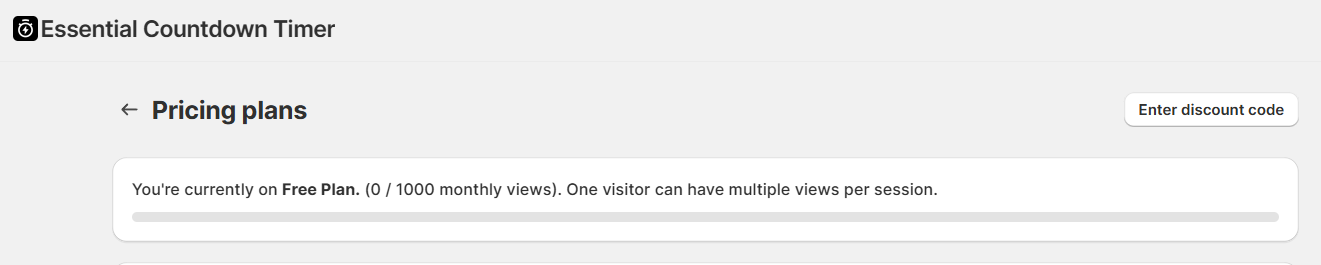
Because the system can’t distinguish between visitor types, all timer loads are counted equally.
3️⃣ What Happens When You Reach Your Monthly View Limit?
If your store reaches the monthly view limit for your plan:
- You will not be charged for extra views
- You will receive an email notification
-
If the plan is not upgraded within 3 days, all published countdown timers will be unpublished automatically
This prevents additional views from being counted.
📌 Important:
Unpublishing does not delete your timers. They remain saved in the app and can be republished at any time.
4️⃣ When Do Timer Views Reset?
Timer views reset automatically on the 1st day of each month.
- No manual action is required
- Once reset, timers can be published again
- View usage starts counting from zero for the new month
5️⃣ What Happens After Downgrading or Cancelling a Plan?
If you downgrade or cancel your plan:
- Paid-plan features may no longer be available
- Free plan limits will apply
- Timers that exceed free limits may be unpublished
-
No additional charges will be applied for exceeding limits
All billing adjustments follow Shopify’s standard subscription rules.
💡 Tips to Manage Your Timer Views
Here are a few simple ways to keep your view usage under control:
- Avoid placing timers on unnecessary pages
- Remove timers you’re no longer using
- Be mindful when showing timers across many products or collections
-
Remember that testing and previewing your store also counts as views
✅ Notes
- Timer views are counted per widget load, not per visitor
- Exceeding your view limit does not cause extra charges
- Timers are automatically unpublished after 3 days if no upgrade is made
- Views reset on the 1st of every month
-
All plan changes are managed safely through Shopify
If you’re unsure which plan fits your store best or want help reviewing your usage, our support team is always happy to help 💙