
How to Create a Trust Badge (Essential Trust Badges & Icons app)
This walkthrough shows how to create a Trust Badge in Essential Trust Badges & Icons. You can also watch the video: How to add Trust Badges with app blocks.
- Open Essential Trust Badges & Icons in the Shopify admin and click Create new badge.
-
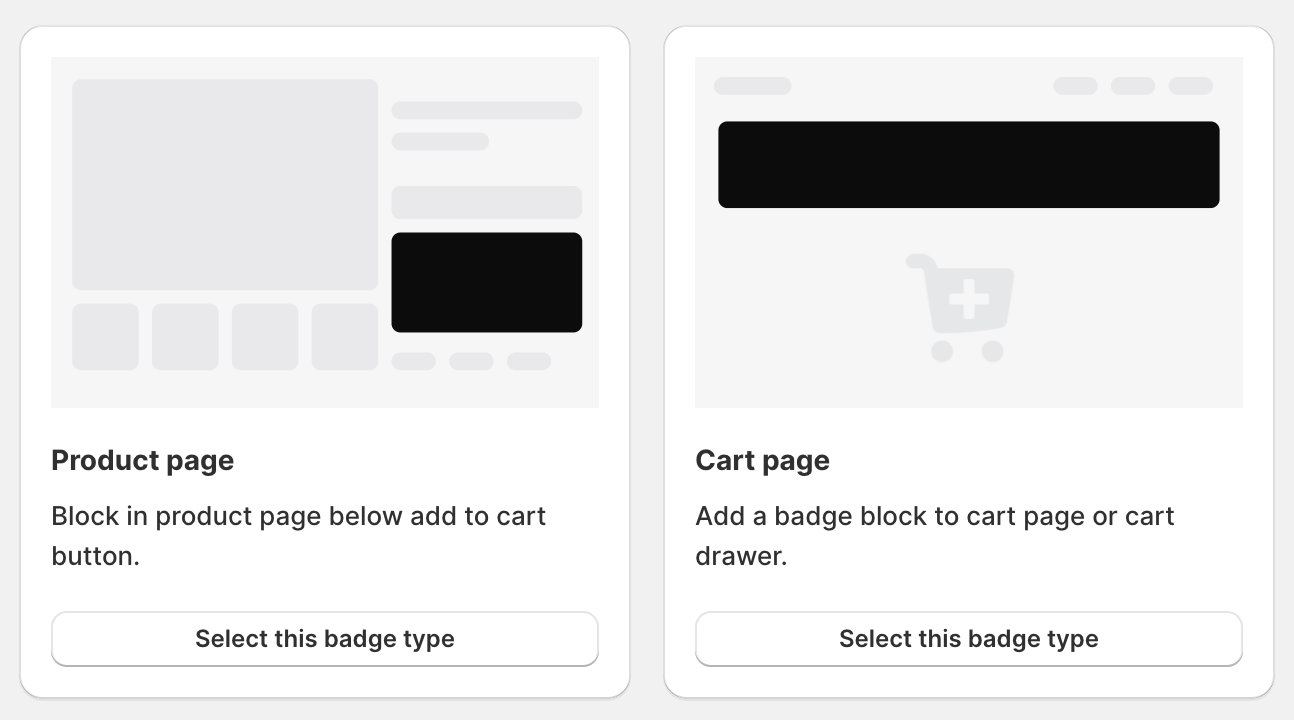
Choose the badge type. Product page places the badge below the Add to Cart button. Cart page adds a badge block to the cart page or cart drawer and requires the Essential plan or higher.
-
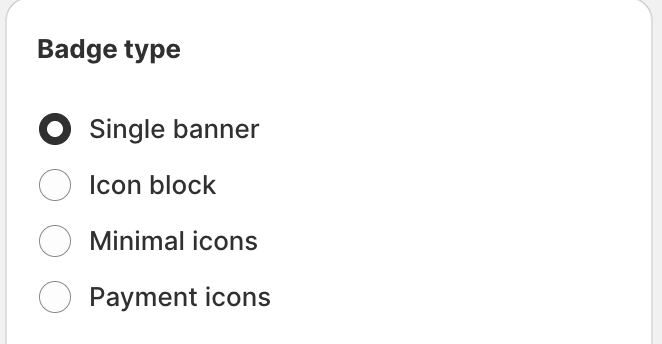
On the Content tab, choose the badge type: Single banner, Icon block, Minimal icons or Payment icons. Then set the internal badge name and the title, subheading and icon. The badge name is for your reference and is not shown to customers.
-
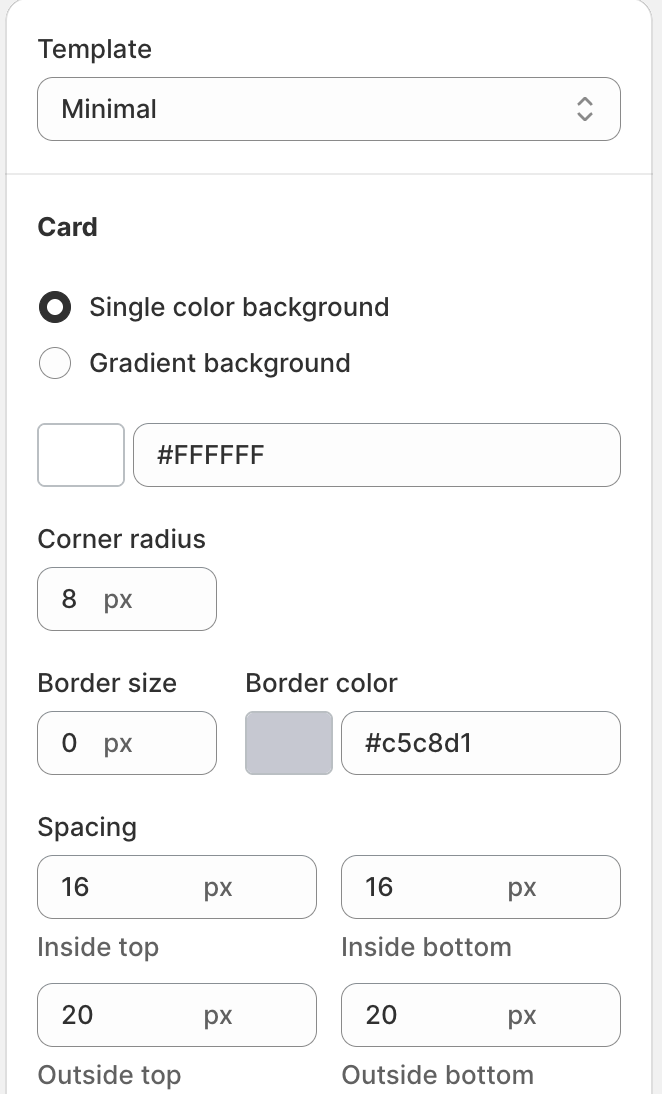
On the Design tab, choose the template, card background, corner radius, border and spacing. Then adjust the icon and text settings.
-
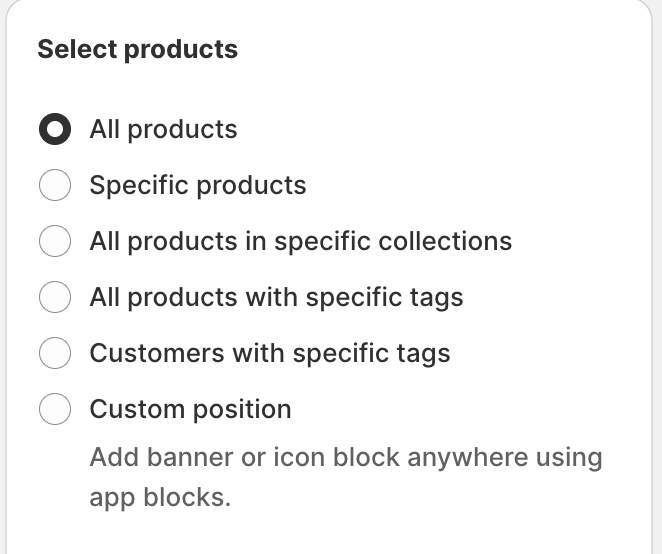
On the Placement tab, for a product page badge, choose which products see the badge: all products, specific products, products in specific collections, products with specific tags, or a custom position. You can also show it only to customers with specific tags. For a cart page badge, choose the cart position: top, bottom or custom. The tab also includes geolocation targeting.
- Click Publish in the upper-right corner. The badge status changes to Published and the badge is synced to your store. Before you check it, make sure the Trust Badges app embed is turned on under Online Store → Themes → Customize → App embeds. Storefront updates can take up to about 20 seconds.
If the badge does not show, see Trust Badges Not Showing – Main Reasons and Solutions.