
How to Create an Announcement Bar (Essential Announcement Bar app)
This guide shows how to create a Top/Bottom announcement bar in Essential Announcement Bar. The same steps apply to the other bar types, which you choose on the first screen.
Step 1: Choose the announcement type
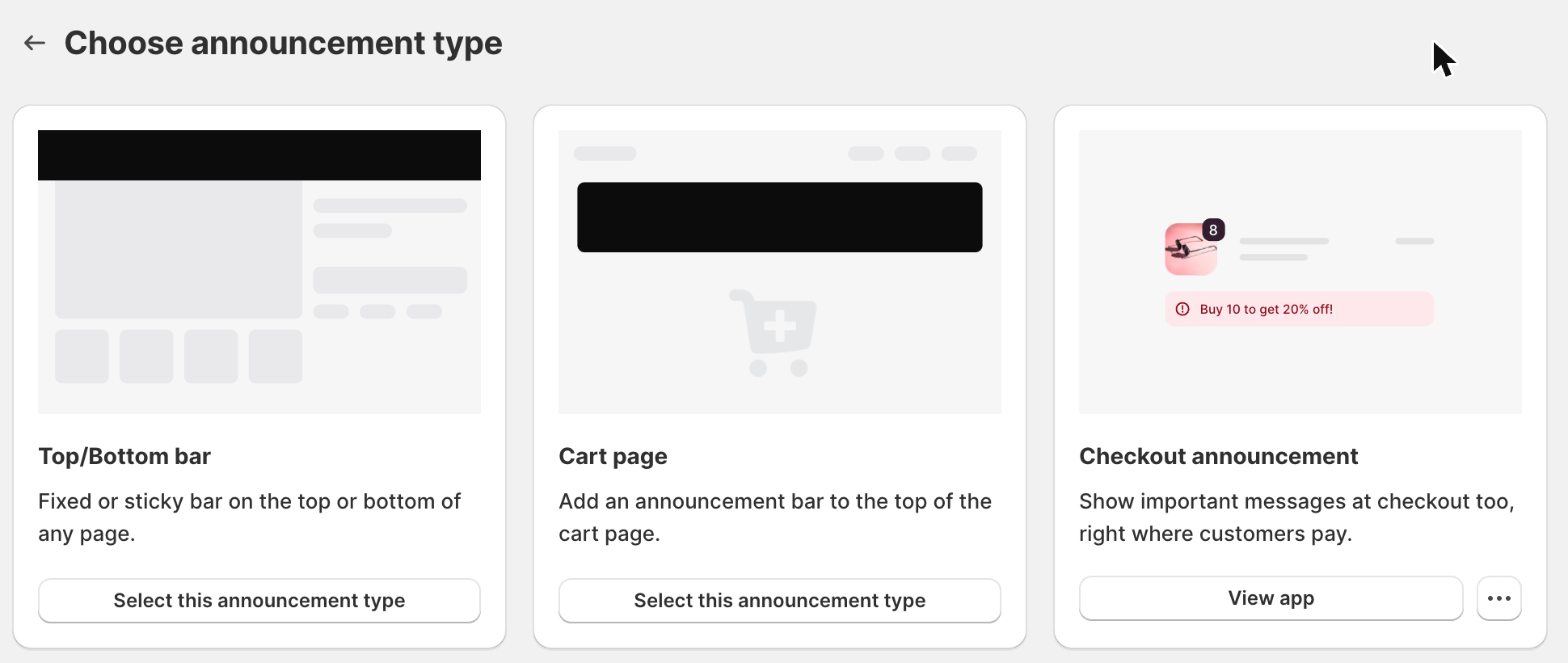
In the Essential Announcement Bar app, select New announcement. Under Choose announcement type, select Top/Bottom bar.
The app may ask you to activate its storefront embed first. If it does, go to Online Store → Themes → Customize → App embeds, turn on Essential Announcement Bar, and click Save.
Step 2: Set the content
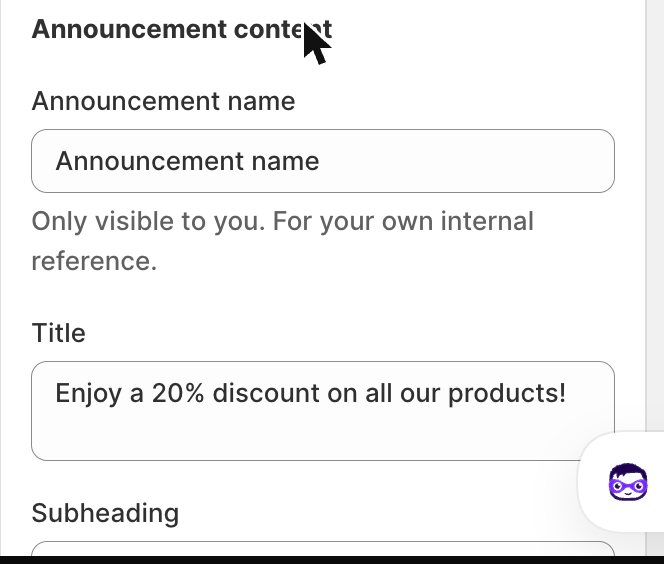
On the Content tab, enter an Announcement name. This name is for your own reference and is not shown to shoppers.
Enter the Title and Subheading. Under Call to action, choose No call to action, Button (then enter the Button Text and Link), or Make entire bar clickable.
Under Announcement type, choose one of the following:
- Simple announcement: one static message.
- Running line announcement: a scrolling message. Set the Animation speed and Animation direction. Requires the Starter plan or higher.
- Multiple rotating announcements: several messages that rotate in the same bar.
When the content is ready, click Continue to Design.
Step 3: Set the design
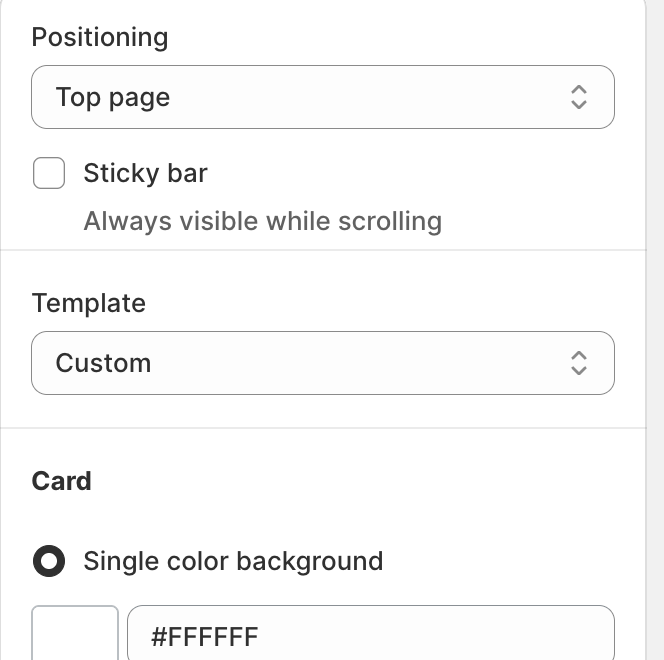
On the Design tab, set the Positioning to Top page or Bottom page.
To keep a top bar visible while the shopper scrolls, turn on Sticky bar. The option is described in the app as Always visible while scrolling.
Under Card, choose a background: Single color background, Gradient background, or Background image. You can also change the corner radius, border, font, title and subheading colours, and the button colours. When you are done, click Continue to Placement.
Step 4: Choose where the bar appears
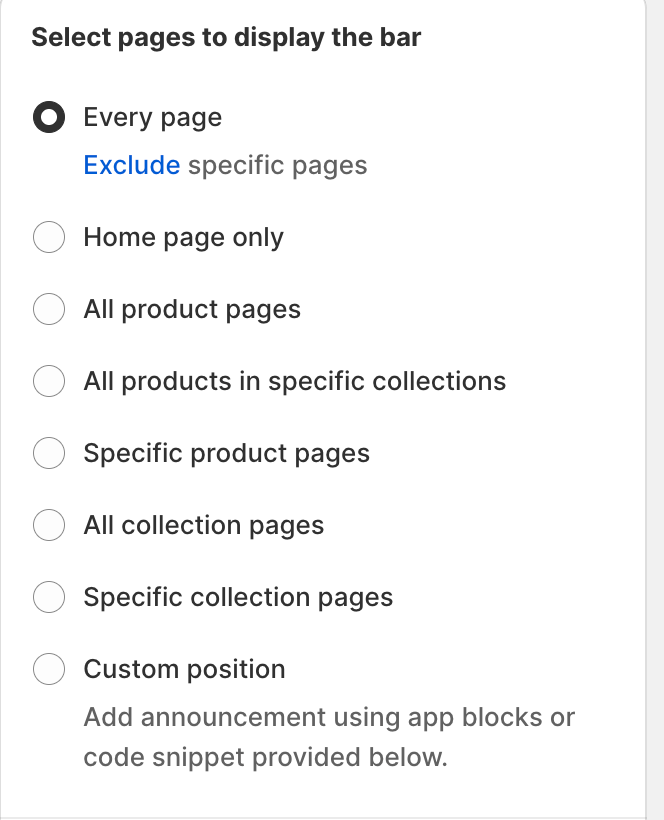
On the Placement tab, under Select pages to display the bar, choose one of the page options, such as Every page, Home page only, All product pages, or All collection pages.
If you choose Every page, you can click Exclude specific pages to hide the bar on pages such as the cart or search page.
Choose Custom position only if you want to place the bar with a theme app block or code snippet.
Step 5: Publish the bar
Click Publish in the top-right corner. The bar status changes to Published.
The bar can take up to about 20 seconds to appear on your storefront. If it does not appear, check that the Essential Announcement Bar app embed is turned on and saved. See Why is my announcement bar not showing on my store?