
Announcement Bar Types: How They Differ and How to Set Them Up
Announcement bars are a powerful yet simple way to communicate important messages to your visitors without disrupting their browsing experience. Whether you want to promote a sale, highlight free shipping, or share an important update, announcement bars help you deliver the message clearly and effectively 🚀
In this article, we’ll walk through the main announcement bar types, explain how they differ, and outline how to set them up.
Announcement Bar Types and Variations
Essential Announcer provides two main announcement bar types, designed for different placements and user intent:
- Top / Bottom Announcement Bar
- Cart Page Announcement Bar (available only with the paid Essential plan)
While these types differ in where they appear, both support the same three announcement variations, giving you flexibility in how your message is presented ✨
Available Announcement Types
Both Top/Bottom and Cart Page announcement bars (Cart Page available only with the paid Essential and Professional plans) can be displayed using one of the following formats:
1. Simple Announcement 📣
A static message is displayed in the announcement bar.
Best for:
- Short, clear messages
- Store updates or one-time promotions
- Announcements that don’t require movement or rotation
This option is ideal when you want to deliver information quickly and without distraction.
2. Running Line Announcement 🔁
A scrolling text message that runs horizontally across the bar.
Best for:
- Longer messages
- Time-sensitive promotions
- Drawing extra attention without taking up more space
The running line ensures the full message remains visible even when space is limited.
⚠️ Running line announcements requires a paid plan.
3. Multiple Rotating Announcements 🔄
A sequence of announcements that rotate automatically within the same bar.
Best for:
- Promoting multiple offers
- Displaying different messages in a single location
- Maximizing visibility without clutter
This format allows you to communicate more while keeping the design clean and organized.
Set Up the Announcement Bar 📢
Step 1: Enable the App Embed in Your Theme 🎨
Before creating an announcement bar, make sure the app embed is enabled in your theme:
- Go to your Shopify Admin
- Navigate to Online Store → Themes
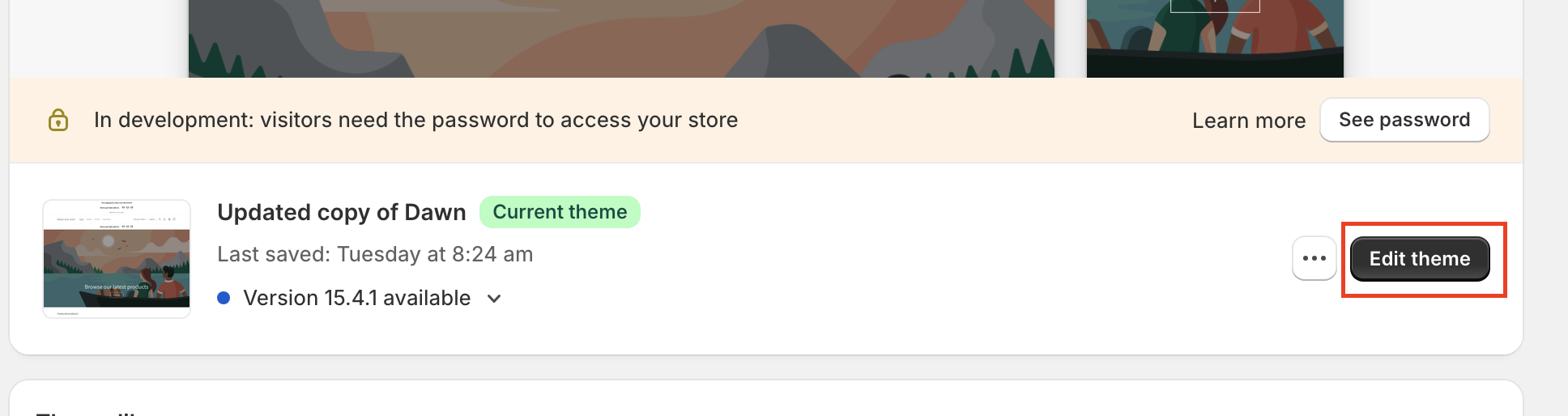
- Click Edit theme
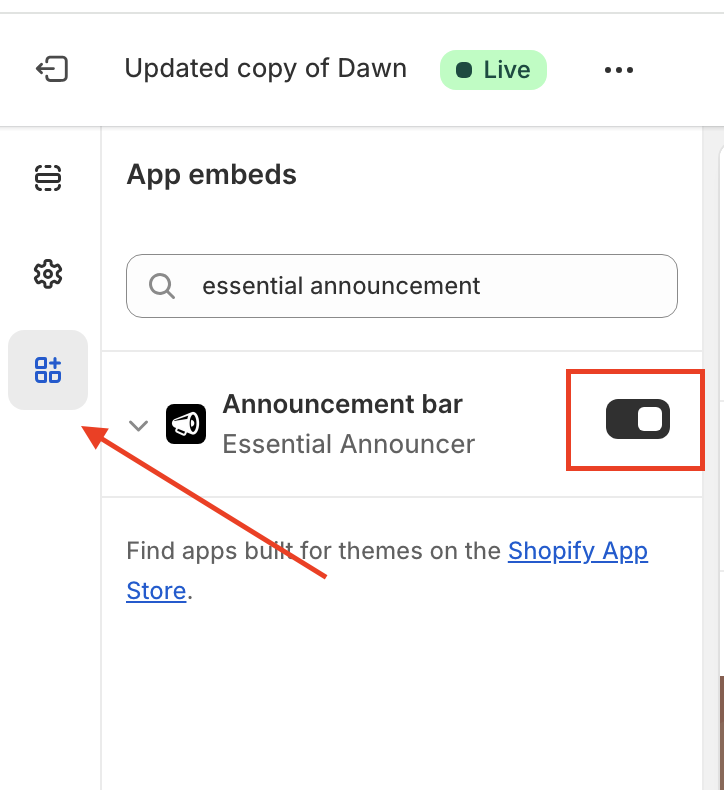
- Open App embeds and enable Essential Announcer
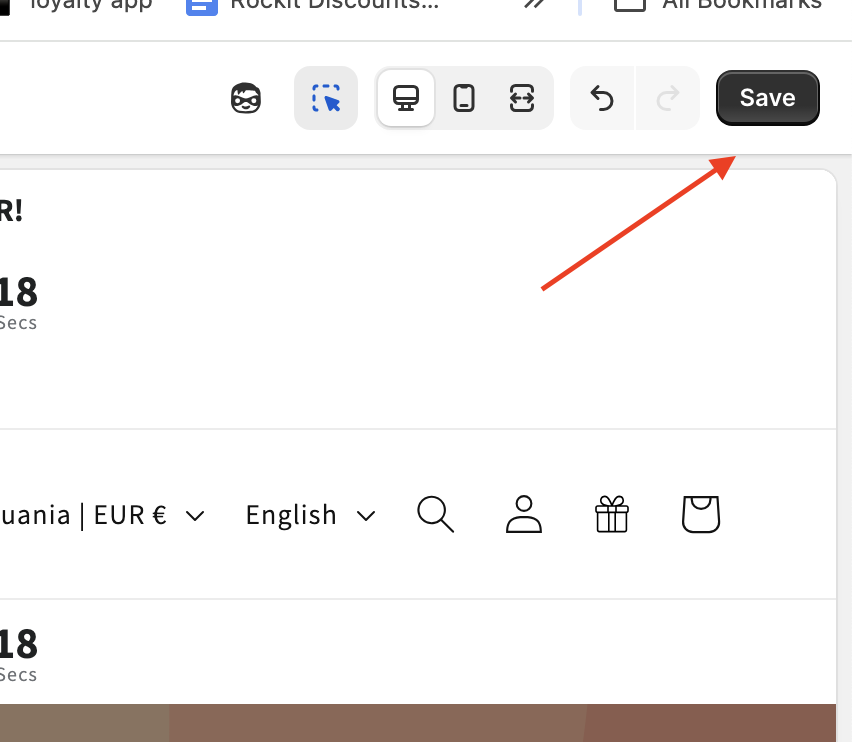
- Click Save to apply your changes
Step 2: Create an Announcement Bar 🧠
-
Open the Essential Announcer app
Click Create announcement
Choose the announcement bar type you want to set up:
- Top / Bottom Announcement Bar
- Cart Page Announcement Bar (available with the paid Essential or Professional plans)
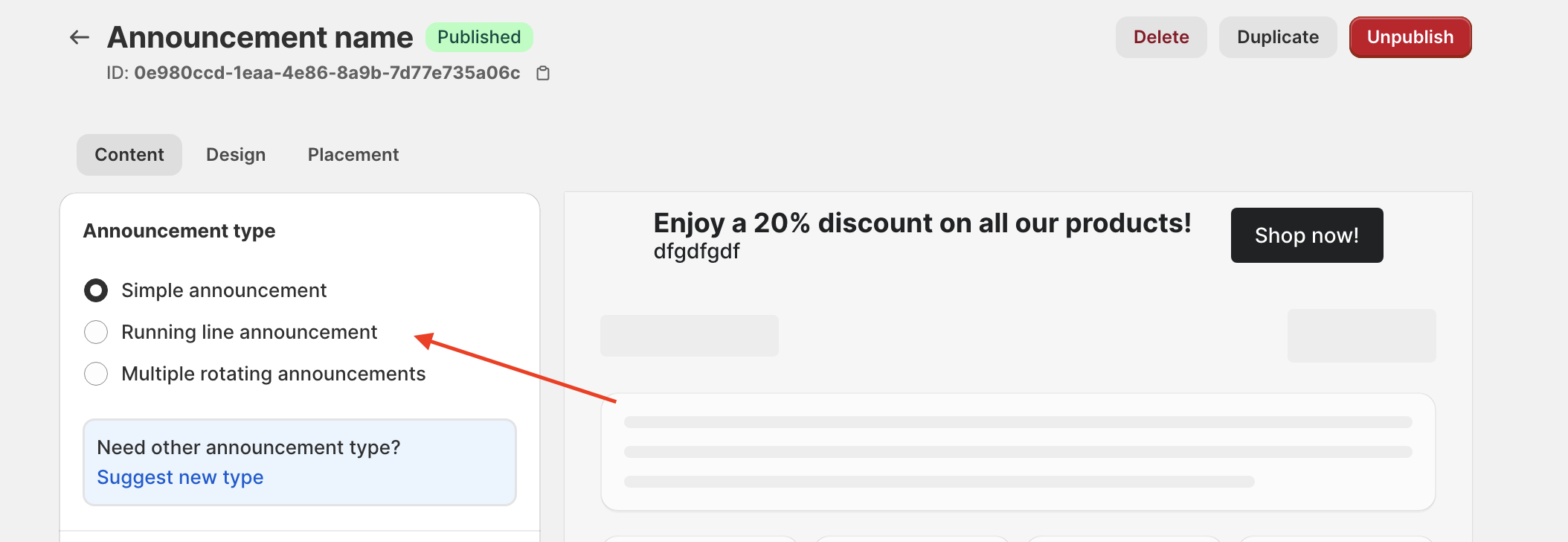
Step 3: Select an Announcement type on the Content tab that meets your preferences 🔄
-
Simple Announcement 📣
A static message is displayed in the announcement bar.
-
Running Line Announcement 🔁
A scrolling message that moves horizontally within the bar.
⚠️ Requires a paid plan.
-
Multiple Rotating Announcements 🔄
Multiple messages that rotate automatically within the same bar.
Step 4: Customize and Publish Your Announcement Bar ✅
- Customize colors and fonts to match your store design
- Set display rules
- Preview your announcement bar
- Click Publish to make it live
Change the Default Announcement Bar Placement (Custom Position) 📍
If you want to change the default placement of the announcement bar and place it in a custom location within your theme, follow the steps below.
Step 1: Select “Custom Position” in the App
- Open the Essential Announcer app
- Go to the Placement tab
- Select Custom position
Once enabled, the app will no longer use the default placement and will instead wait for a manual placement setup via the theme editor.
Step 2: Copy the Announcement ID 🆔
After selecting Custom position, you will see a unique Announcement ID.
- Copy the Announcement ID shown in the app
- This ID is required to link the announcement bar with the app block in your theme
Step 3: Add the App Block in the Theme Editor 🎨
- Go to your Shopify Admin
- Navigate to Online Store → Themes
- Click Edit theme of the currently published Theme
- Open the template where you want the announcement bar to appear (for example: Header, Footer, Body)
- Add the Announcement Bar app block
- Paste the copied Announcement ID into the app block
Step 4: Save and Adjust Placement ✅
- Drag the app block to fine-tune its position
- Click Save to apply your changes
The announcement bar will now appear exactly where the app block is placed in your theme.
If you have any questions about announcement bars, placement options, or anything else, our support team is always happy to help and available 24/7 at support@essential-apps.com 💙