
How to Generate an AI Blog Post
This guide explains how to use the generation settings in the Essential AI Blog to create high-quality, SEO-optimized content.
Step 1: Start a New Draft
- Open the Essential AI Blog app in your Shopify admin.
-
Click the New blog post button in the top right corner.

Step 2: Define Your Content
Briefly describe what the article is about in the Blog Post generation page.
| Setting | What it does |
| Visibility | Determines if the post is published immediately (Visible) or saved as a draft (Hidden) within your Shopify admin. |
| Language | Tells the AI which language to use when writing the title and content. |
| Post Topic | The core subject of your article. This is the primary instruction the AI uses to understand what to write about. |
| Tone | Sets the "personality" of the writing (e.g., Informal, Professional) to match your brand's voice. |
| Post Length | Controls the approximate word count of the generated article (e.g., Short, Medium, Long). |
| Keywords | Specific terms or phrases you want the AI to include to help your post rank better in search engines (SEO). |
| Post Outline | The structural "roadmap" for the article. You can write your own or click Generate outline to have the AI suggest subheadings first. |
| Generate featured image | A toggle that, when enabled, uses AI to create a unique visual for the top of your blog post. |
| Image description | A "prompt" for the AI image generator. The more detail you provide here, the more accurate the image will be. |
Step 3: Generate and Review
- Click the Generate blog post button.
-
Once the post is generated, make any edits or adjustments as needed.
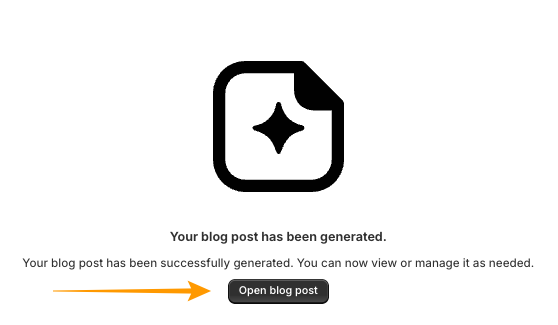
- Click Preview on Shopify to open the Shopify content editor for final adjustments.

- Set the visibility to Visible so the Blog Post can be accessed on your Lie Website.
-
Click View to see the live blog post.

Important Notes on Branding & Content Quality
- The AI is a powerful writing assistant, but it requires your guidance to stay "on brand" and for confirming the Blog Post is correct.
- The more specific your details you add to the Blog Generation page, the less editing you will have to do later.
-
It is up to you how you set up the linking to the Blog Post on the live website, our application simply helps you to generate the text for the Blog Post.
Important Reminder
Our app is your content creator, but your Shopify Theme is the publisher. If the text looks great in the app but "weird" on your site, you may need to adjust your Shopify Theme settings or CSS.