
How to Display Cart Savings Using Rockit’s Widget
Rockit lets you show customers how much they’re saving in the cart using a built-in widget. Follow these steps to enable it:
Step 1: Enable the Cart Savings Widget
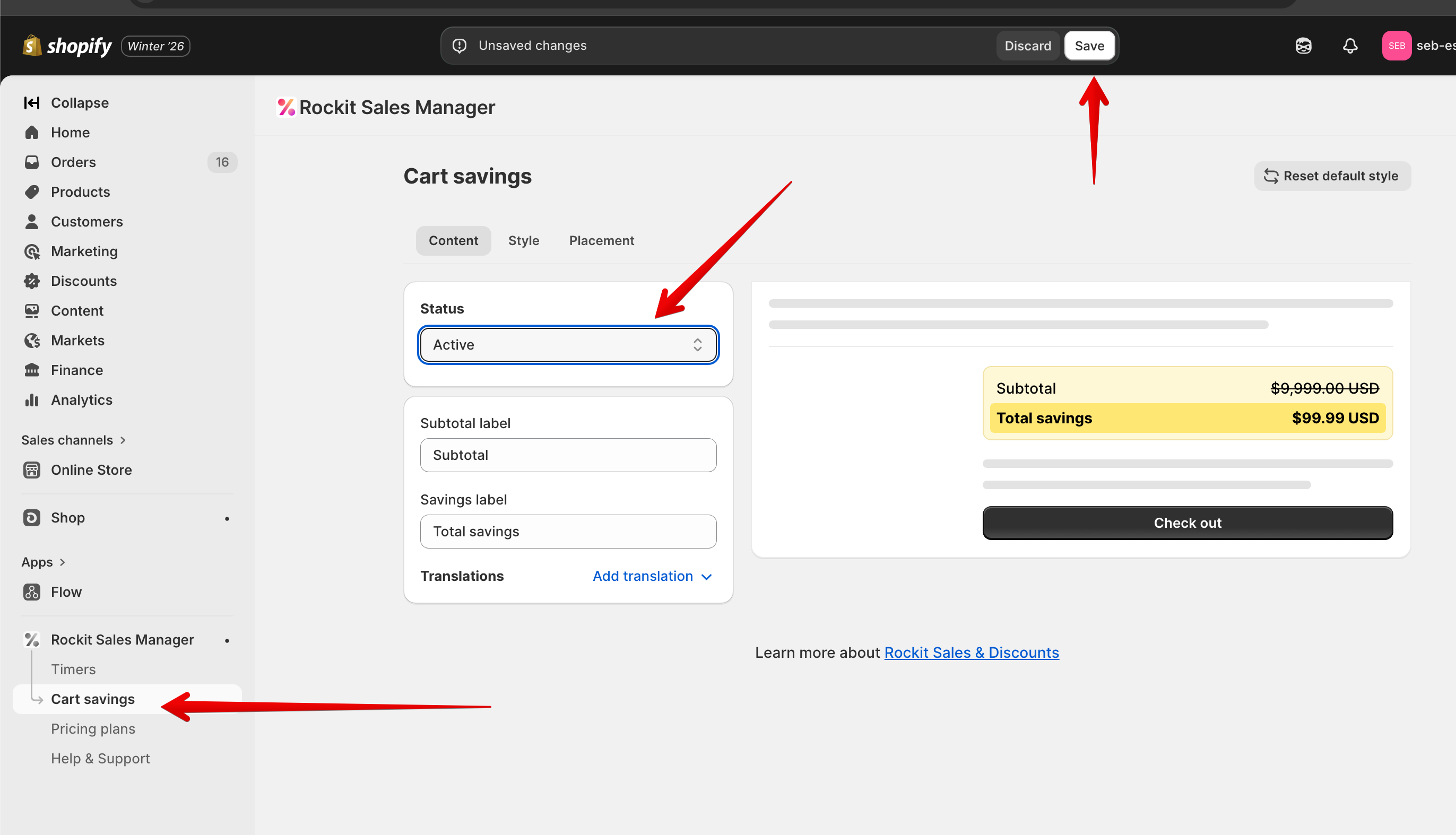
- Open Rockit Discounts & Sales
- Go to the Cart Savings page
- Change the Status to Active and click the Save button.
Step 2: Place the Widget
You can place the Cart Savings widget the same way you place a Timer block:
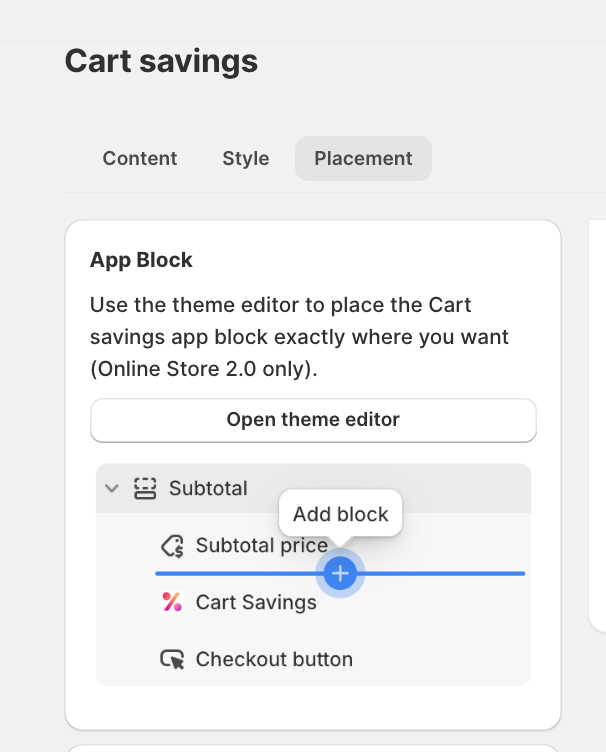
Option A: App Block (Recommended – Online Store 2.0)
- Click Open theme editor
- Go to your Cart page
- Add the Cart Savings app block
- Drag it to the exact position you want (for example, below the subtotal)
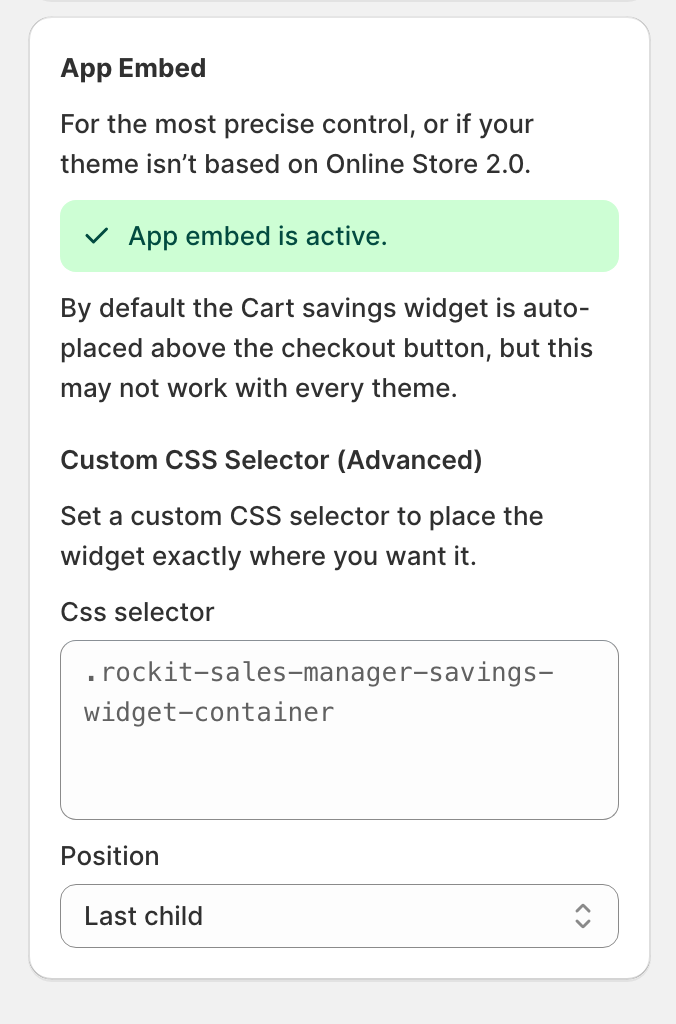
Option B: App Embed (Advanced)
- Enable App embed
- By default, the widget appears above the checkout button
- Optionally, use a custom CSS selector to control the exact placement
Step 3: Customize the Widget (Optional)
- Adjust the text, style, and colors from the widget settings
- Changes apply after you click the Save button.
Step 4: Test
- Make sure your sale is active
- Add discounted products to the cart
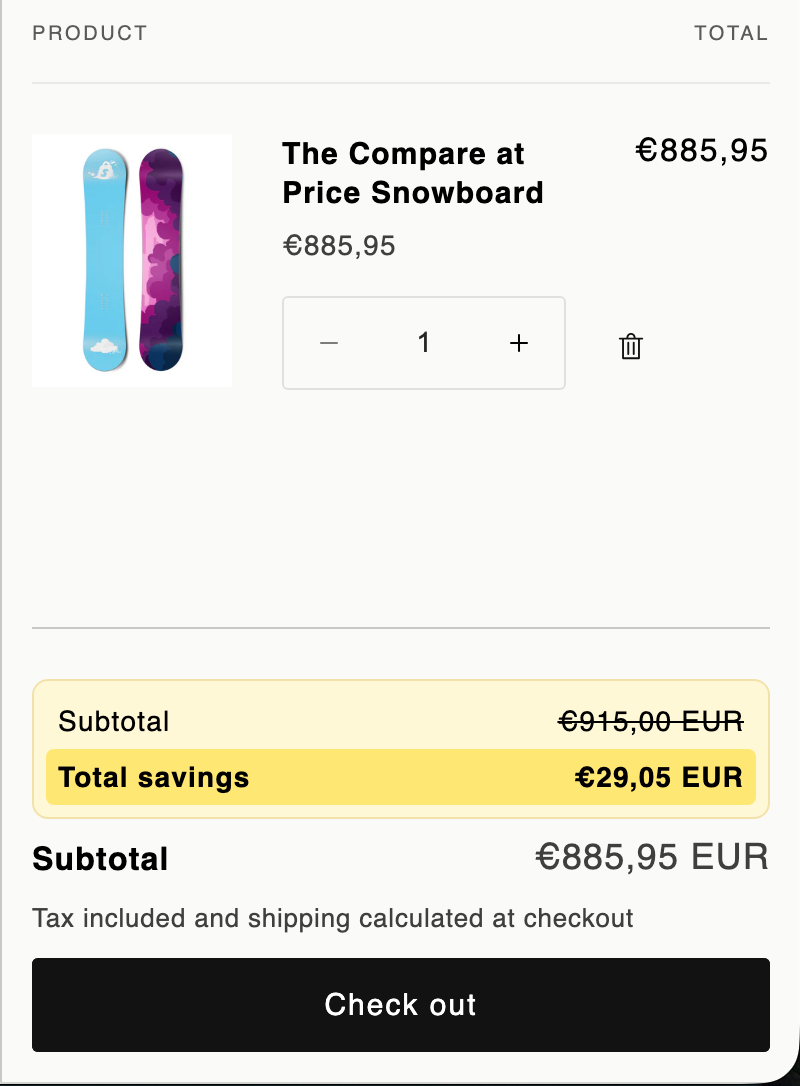
- Verify that the savings message appears correctly in the cart page and the side cart
Important Notes
- The widget shows savings based on the difference between the compare-at price and the current price, regardless of whether the price change comes from Rockit or from Shopify directly
- No discounts are applied at checkout
That’s it! Your customers will now clearly see how much they’re saving at checkout 🚀