
How to Place the Countdown Timer Inside the Cart Drawer or Cart Page
Adding a Countdown Timer to your cart helps create urgency right before checkout, encouraging customers to complete their purchase. Essential Countdown Timer allows you to place timers directly in the cart page or cart drawer, depending on your setup.
This article explains how to place the Countdown Timer in the cart and what options are available.
📌 Important Things to Know Before You Start
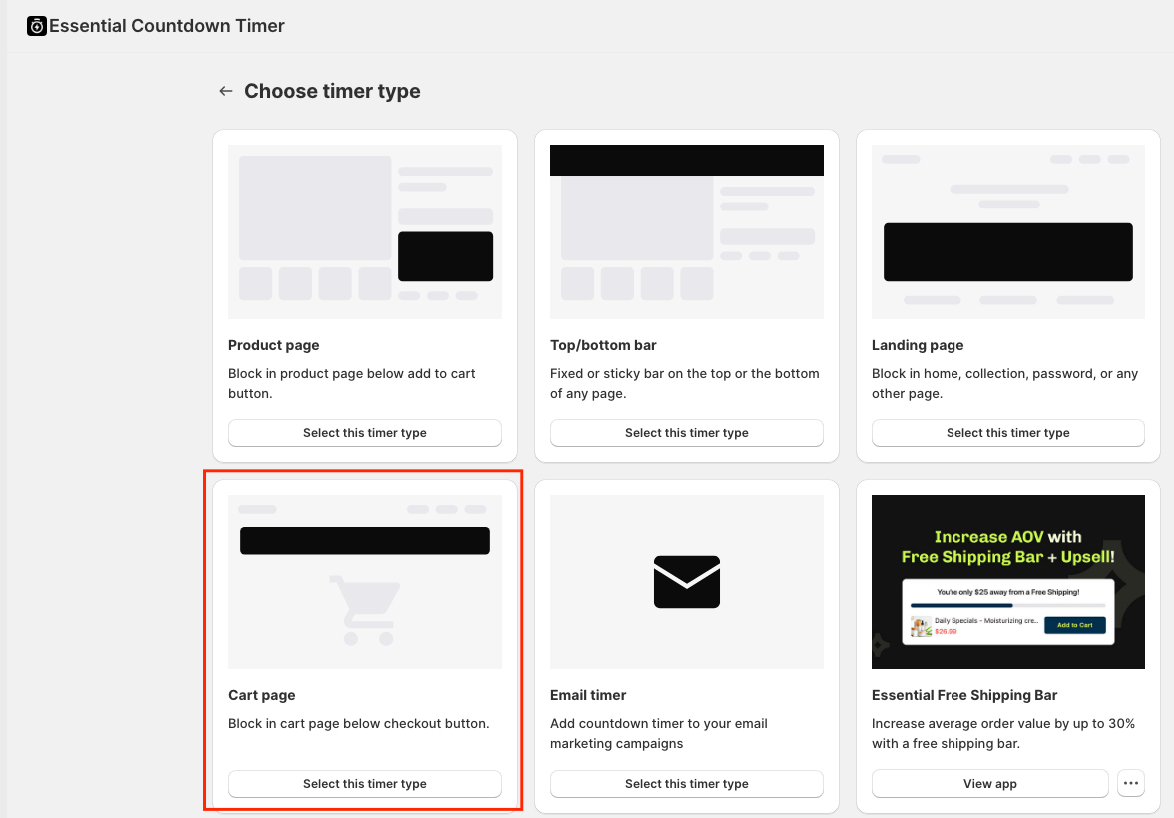
- Cart timers are created as a Cart page timer
- The timer can appear automatically at the top of the cart or be placed manually
- Cart placement is configured per timer
- The timer must be published to appear in the cart
- Geolocation targeting can affect who sees the timer
1️⃣ Create or Open a Cart Page Timer
- Open Essential Countdown Timer
- Click Create a new timer or open an existing one
-
Select the Cart page as the timer type
-
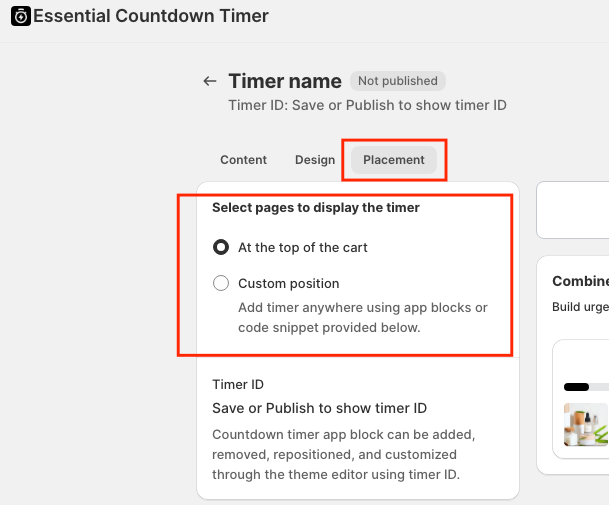
Go to the Placement tab
2️⃣ Place the Timer Automatically in the Cart
In the Placement tab, select:
At the top of the cart
When this option is enabled:
- The timer is automatically displayed at the top of the cart page or cart drawer
- No theme editing or manual placement is required
- This is the recommended option for most stores
Once selected, Publish the timer.
3️⃣ Place the Timer Using Custom Position
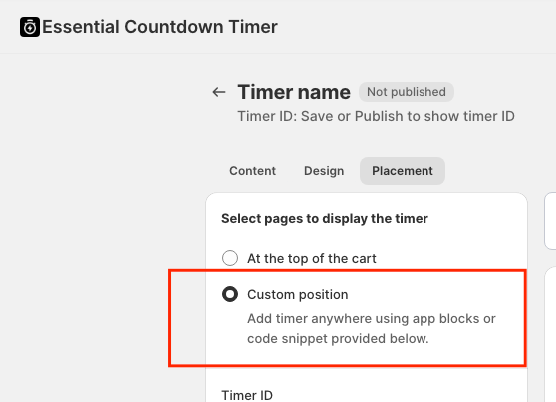
If you want full control over where the timer appears, you can use Custom position.
⚠️ Important: Custom position works only on the Cart Page.
When this option is used, the Cart Drawer will no longer display the timer.
Steps:
- Go to the Placement tab
- Select Custom position
- Save or Publish the timer.
- Open Online Store → Themes → Customize
-
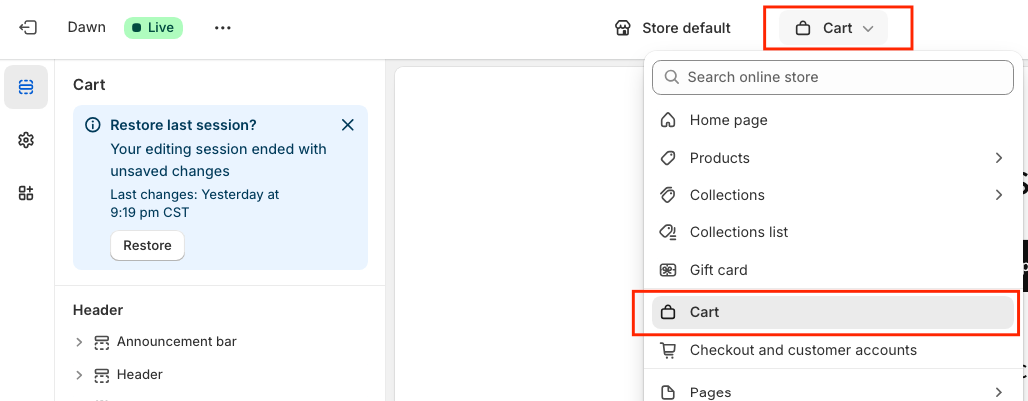
From the page selector at the top, open the Cart Page
-
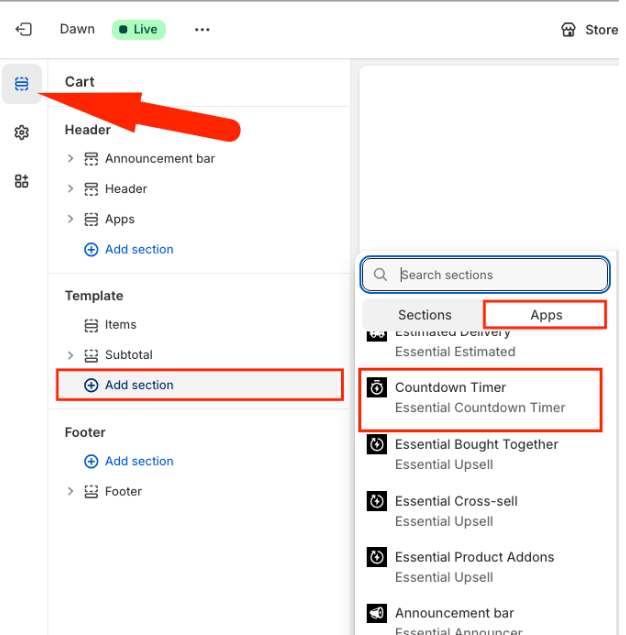
In the left sidebar, click Add section and select Essential Countdown Timer.
-
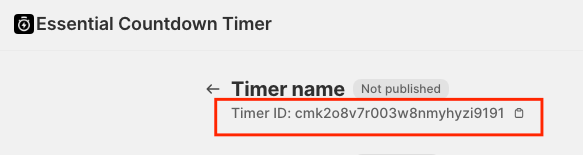
Copy the Timer ID
-
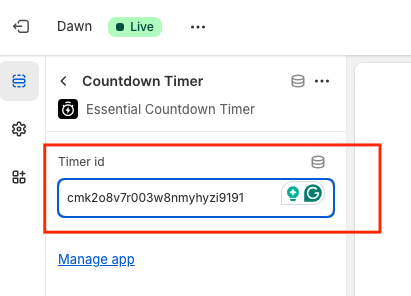
Place the Timer ID in the app block.
This option is useful for custom cart layouts or when you need precise placement.
4️⃣ Publish and Test the Timer
- Click Publish
- Open your storefront cart or cart drawer
- Add a product to the cart to verify the timer is visible
📌 Tip:
Always test using an incognito window or a different browser to avoid cached sessions.
⚠️ Common Issues and How to Fix Them
🌍 Timer is Set to Show Only in Specific Countries
If Geolocation targeting is enabled, the Countdown Timer will only appear for visitors browsing from the selected countries.
What this means:
- Visitors from other countries will not see the timer
- This is expected behavior and does not indicate a problem
How to fix or test:
- Open the timer → Placement tab
- Disable geolocation targeting to test visibility or
- Create separate timers for each country or region you want to target
📌 Important:
If you have timers set for specific countries (for example, the US or the UK), visitors from those countries will not see timers set to “All world.”
To show a timer in those regions, you must create and assign a separate timer specifically for them.
If you need help configuring cart placement or geolocation targeting, our support team is always happy to assist 💙