
Start a Campaign from a Template (Essential Subscriptions app)
When you create a subscription campaign, the app first shows the Pick a template page. Each template is a ready-made widget with sample plans, discounts and colours. You pick the features you want, see them in four layouts side by side, and open the one you like in the campaign editor.
Nothing is saved or published until you do it yourself in the editor.
Step 1: Open the template page
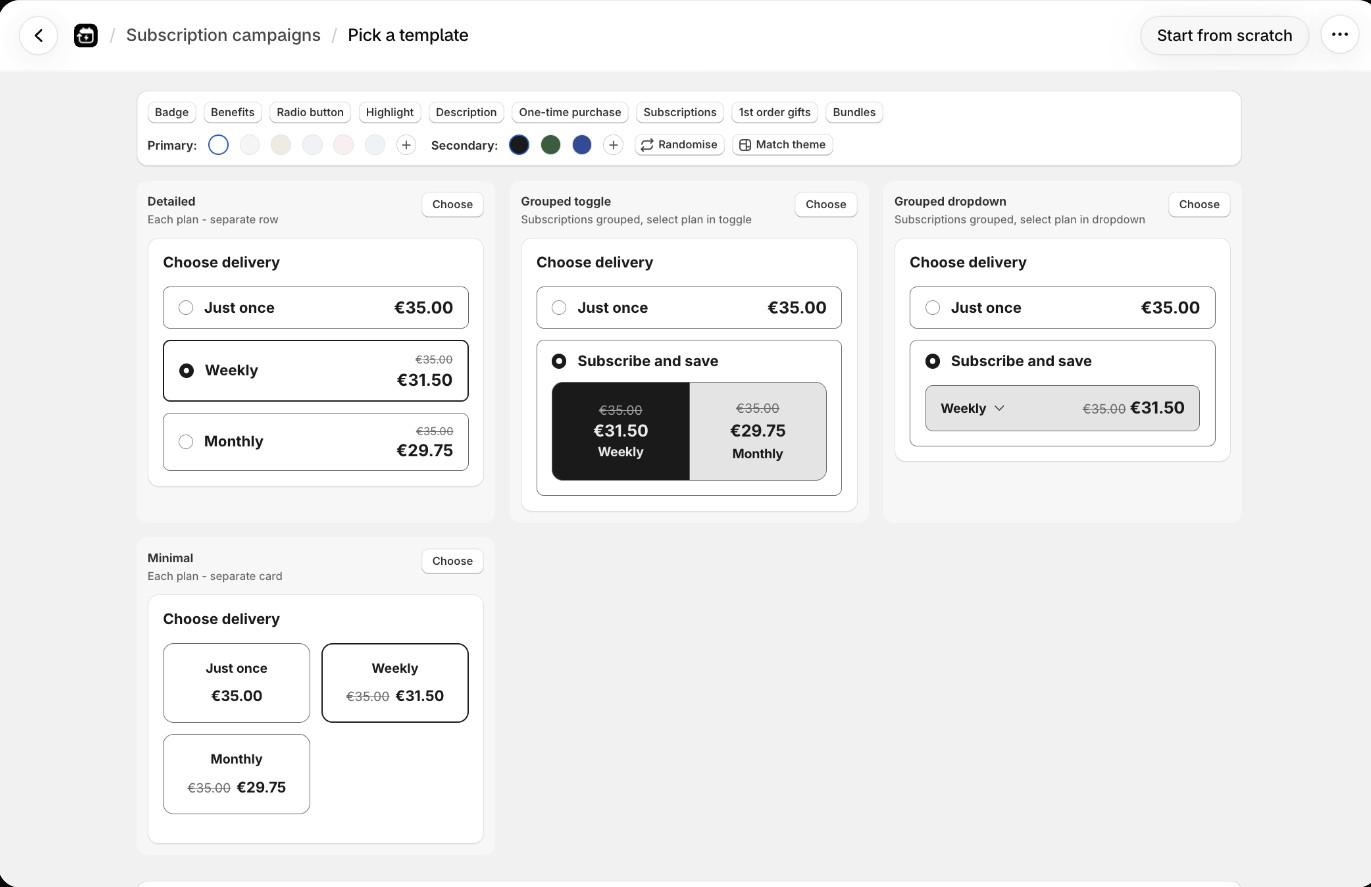
Any of these takes you there:
- Campaigns > Create subscription campaign.
- On the Home page, Create campaign in the Setup Guide or in the Subscription campaigns card.
- Opening Campaigns when you have no campaigns yet.
To skip templates, click Start from scratch at the top of the page. To go back, click Subscription campaigns at the top left.
Step 2: Pick the features
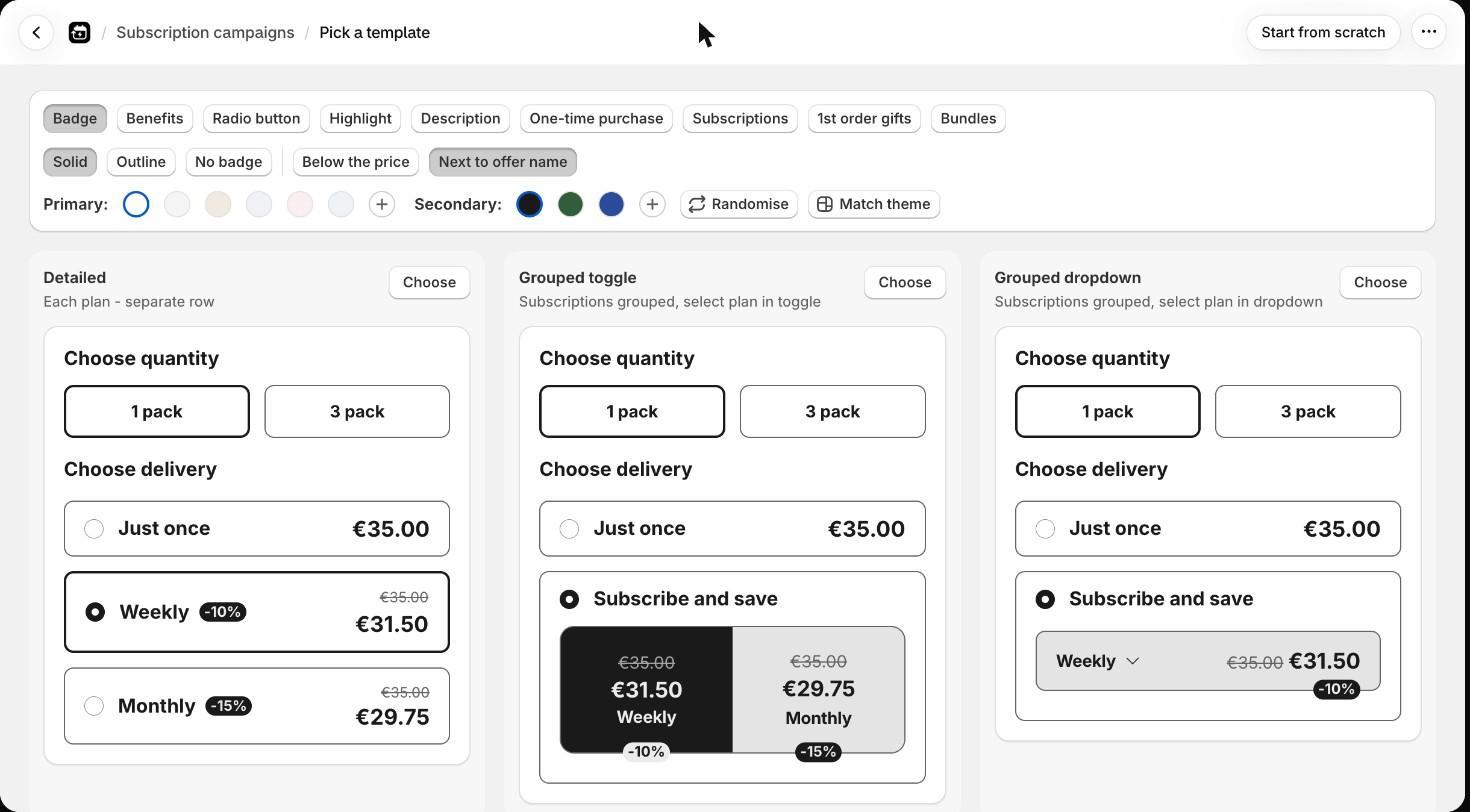
The row of chips at the top changes all four previews at once. Click a chip to see its choices. Opening a feature chip for the first time also turns that feature on.
| Chip | Choices |
|---|---|
| Badge | Solid, Outline or No badge. Position: Below the price or Next to offer name. |
| Benefits | Two benefit lines with a Check, Star, Arrow, Circle or Heart icon, or No benefits. |
| Radio button | On or Off. |
| Highlight | On or Off. A "Best value" label on the first plan, or on the subscription box in the Grouped layouts. Not shown in Minimal. |
| Description | On or Off. A line under each plan that explains it. Not shown in Minimal. |
| One-time purchase | Regular option, Link button below Add to cart or No one time purchase. |
| Subscriptions | Pay as you go, Prepaid or Mix. See the plans below. |
| 1st order gifts | On or Off. Adds a placeholder gift to the first plan. |
| Bundles | Pills, Boxes with price or No bundles. Position: Above options, Below options or Inside options. Adds two sample bundles: 1 pack with no extra discount, and 3 pack with 15% extra off. See How to Set Up Volume Bundles. |
Sample plans from the Subscriptions chip:
- Pay as you go: weekly with 10% off, and monthly with 15% off.
- Prepaid: monthly delivery, 3 deliveries paid upfront with 15% off, and 6 deliveries paid upfront with 20% off.
- Mix: 3 monthly deliveries paid upfront with 15% off, and weekly pay as you go with 10% off.
Without any chip changes, a template has no badge, no benefits, the radio button on, no highlight, no description, the one-time purchase as a regular option, pay as you go plans, no gift and no bundles.
Step 3: Pick the colours
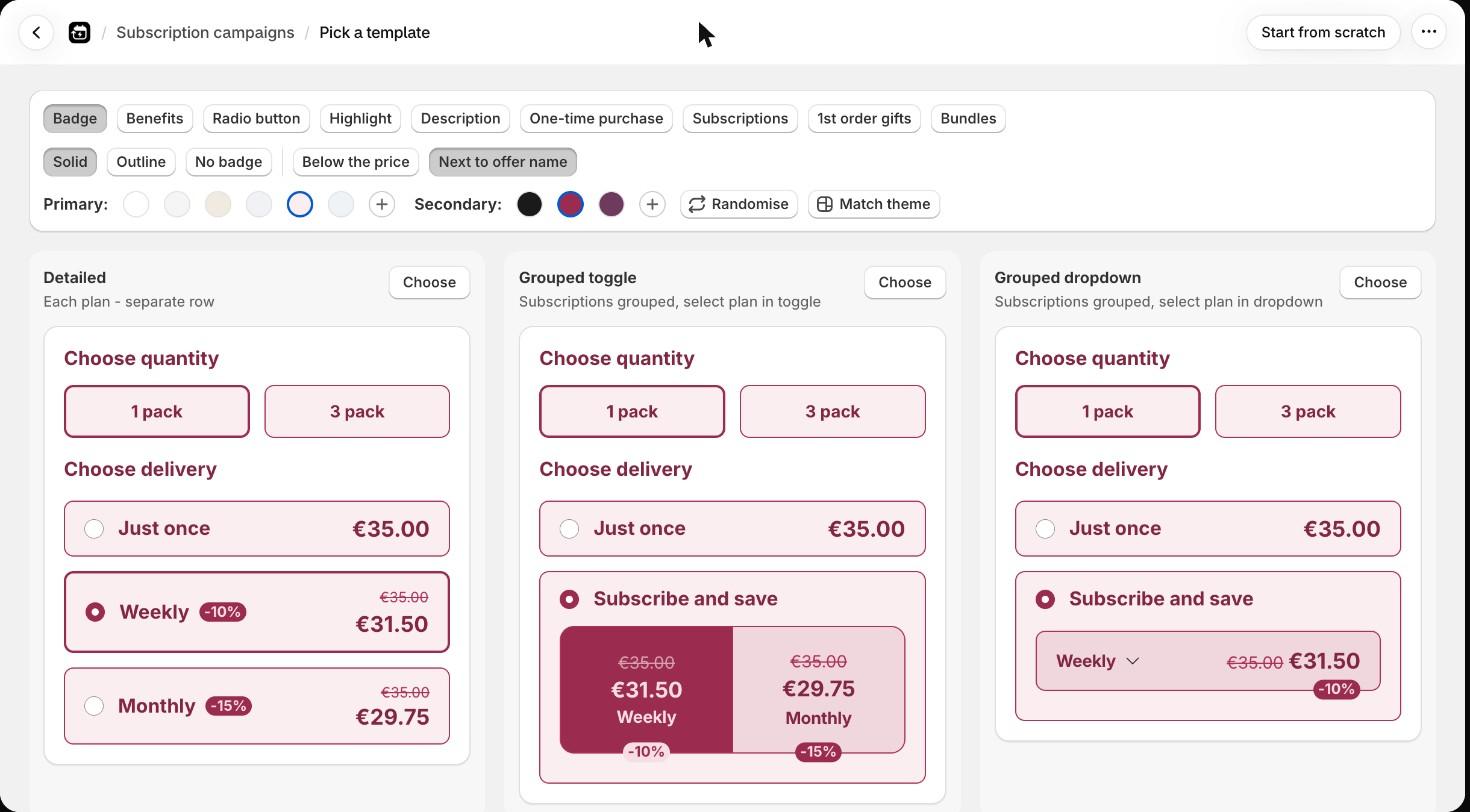
- Primary: the card background colour.
- Secondary: the accent for the selected option, badge and highlight. The choices change with the primary colour.
- Randomise: tries a random combination.
- Match theme: reads your live theme's colours. Click it again to try the next accent from your theme.
You can change colours again later on the Style tab of the campaign.
Step 4: Choose a layout
Four previews show your choices in each layout. Click Choose on the one you want.
| Template | What it looks like |
|---|---|
| Detailed | Each plan is a separate row. |
| Grouped toggle | Plans are grouped in one box. Customers pick a plan with buttons. |
| Grouped dropdown | Plans are grouped in one box. Customers pick a plan from a dropdown. The crossed-out price sits next to the price. |
| Minimal | Each plan is a separate card. |
In the Grouped and Minimal templates the badge starts below the price.
Step 5: Check the campaign and publish
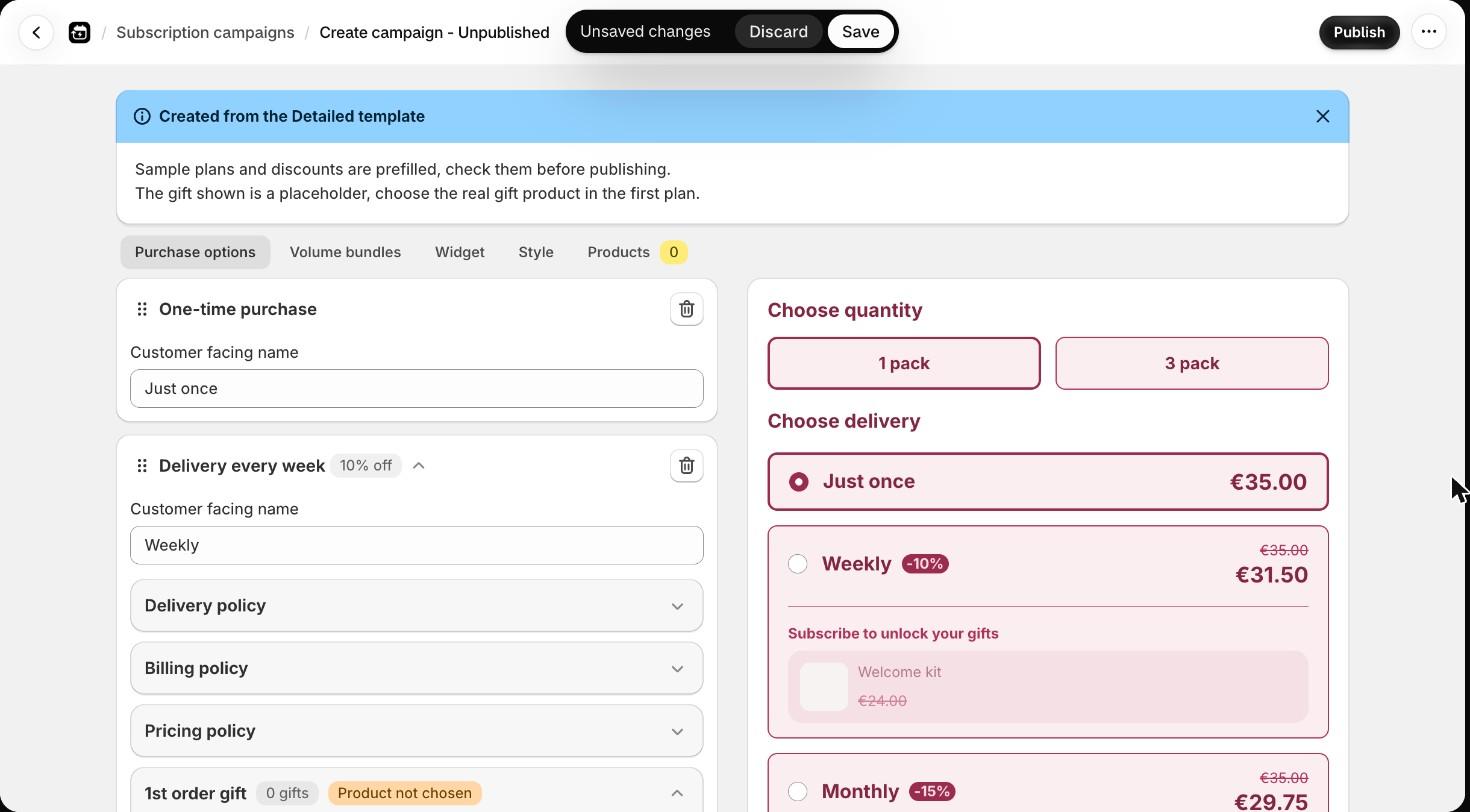
The campaign editor opens with everything filled in. A banner reads Created from the [template] template: "Sample plans and discounts are prefilled, check them before publishing."
- On the Purchase options tab, check each plan's schedule and discount. Change them to your real offer.
- If you turned on 1st order gifts, the first plan shows a placeholder gift called "Welcome kit". Click Choose product in its 1st order gift section and pick your real gift. The placeholder is never saved.
- The campaign name is today's date. Change it at the bottom of the Purchase options tab if you like. Customers never see it.
- If you turned on Bundles, check the pack sizes and discounts on the Volume bundles tab. See How the Volume Bundle Discount Works.
- Add your products on the Products tab.
- Click Publish.
For every setting in the editor, see How to Create a Subscription app Campaign and How to Customise the Subscription Widget. For gifts, see How to Give a Free Gift with the First Subscription Order.