
How to set up the Add-On Upsell Offer and How it Works
What is an Add-On Upsell? ❓
Add-On upsells allow you to offer complementary products directly on the product page or cart page, letting customers select additional items before adding everything to the cart in one action.
When a customer clicks Add to Cart, the main product and all selected add-on products are added together. On the Cart Page, checking the item checkbox adds the upsell product to the cart straight away. This creates a smooth shopping experience and encourages customers to increase their order value without extra steps.
Best practice: Add-on upsells work best when the additional products naturally enhance the main item (for example, accessories, warranties, refills, or related upgrades).
0 Admin
-
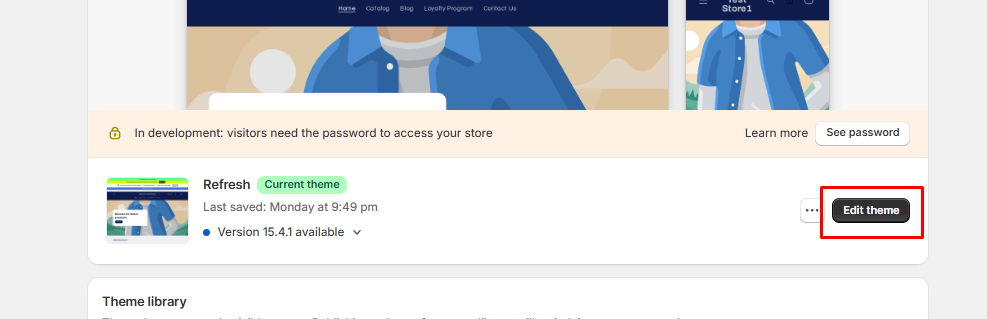
Navigate to Online Store → Themes
-
Click "Edit theme"
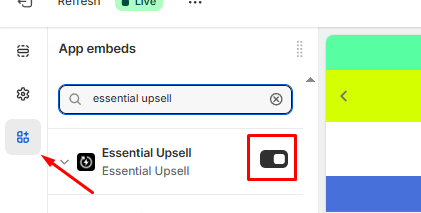
- Open App embeds and enable Essential Upsell & Cross Sell
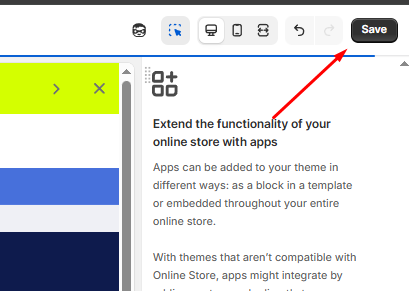
- Press on "Save" button to apply your changes
Step 2: Create an Add-On Upsell Offer 🧩
-
Open the Essential Upsell app and click on Create offer (Add-on offer type is available on Product page, cart page or pop-up type of upsells)
-
Choose Add-On Upsell as the offer type:
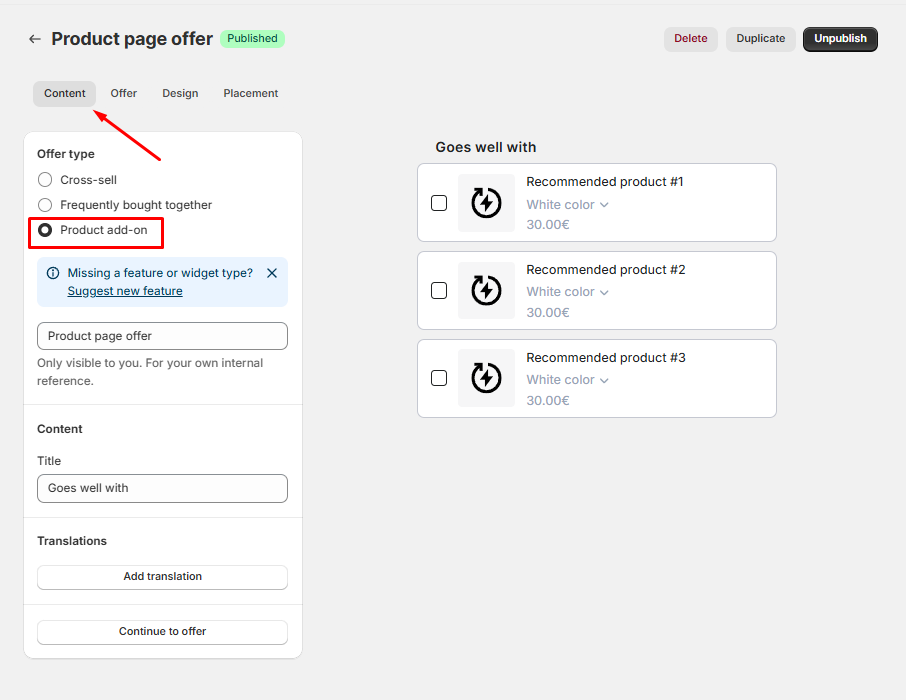
3. Configure your offer:
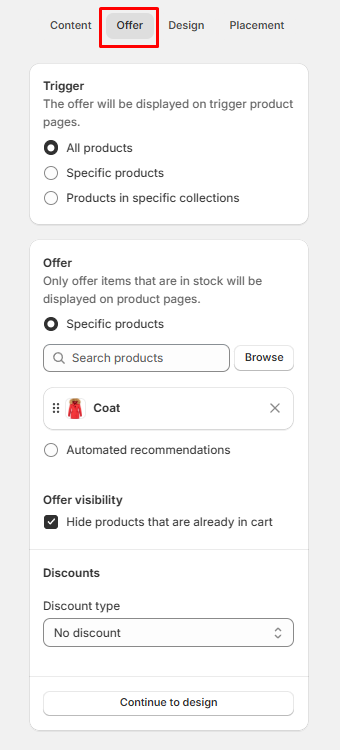
- Trigger products: Select the product(s) that will trigger the add-on upsell
- Offer (Add-on products): Choose the complementary products that customers can add
- Discount (optional): Apply a percentage or fixed discount to the add-on items
- Placement: Decide whether the add-on should appear in its default position or a custom one
If you selected the add-on offer type on a cart page type of upsell you will be able to set if it will show at the top or bottom of the cart drawer and main cart page

4. Customize the design and layout
5. Publish the offer
Once published, customers will see the add-on options directly on the page, making it easy to select extra items before adding to the cart.
Step 3: Place the Add-On Block Correctly (Product Page Only) 📐
If you’re using Add-On upsells on the product page and you would like to change the default placement of the app:
-
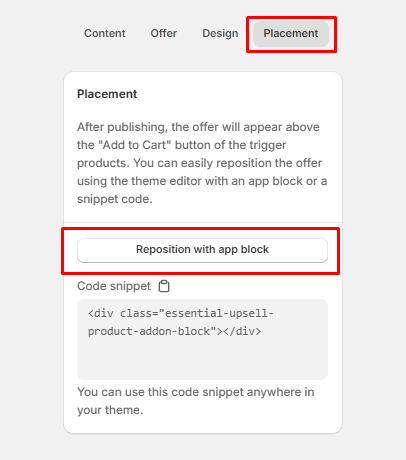
Open your Product template in the Shopify Theme Editor or use the reposition button you can find in the placement tab of the app:
-
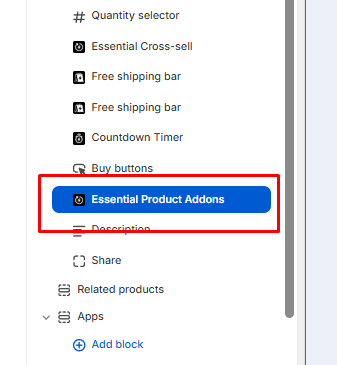
Add the Essential Upsell Add-On block
-
Position it near the Add to Cart button for best visibility and performance
Step 4: Test Your Add-On Upsell 🧪
-
Visit a product that triggers the add-on upsell
Select one or more add-on products
Click Add to Cart
- Confirm that:
- The main product and add-ons are added together
- Discounts (if set) are applied correctly
Troubleshooting 🔧
If your Add-On upsell isn’t showing, please check the following:
-
The app embed is enabled
-
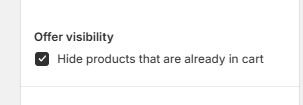
The products offered are not already in the cart if the "Hide products that are already in cart" feature is enabled on your upsell
- Trigger and add-on products are:
- In stock (or inventory tracking disabled)
-
Published and accessible from the live store
You can also check this guide for more in-depth troubleshooting Upsell Not Showing: Main Reasons and Solutions
If the issue persists, feel free to contact our support team, and we’ll be happy to help! 🙌