
How to set up the Pop Up Offer and How it Works
What Is a Pop-Up Offer? ❓
Pop-up offers are upsell offers that appear at key moments in the shopping journey, triggered by customer actions instead of being permanently visible on the page.
With Essential Upsell, pop-up offers can appear:
- On product pages, when a customer clicks Add to Cart
-
On cart pages or the cart drawer, when a customer clicks Checkout
This allows you to present relevant upsell offers right before the customer moves to the next step, helping increase order value without disrupting the browsing experience.
Best practice: Pop-up offers work best when they are simple, highly relevant, and time-sensitive, encouraging customers to accept the offer quickly before moving forward.
Types of Pop-Up Offers Available 🧩
Three offer types are available for pop-up upsells:
Cross-Sell Offer Type
Displays complementary product suggestions inside a pop-up at key moments, such as when clicking Add to Cart or Checkout.
This encourages customers to add related items and increases average order value before proceeding.
Add-On Offer Type
Allows customers to quickly select related add-on products from a pop-up triggered by their action.
Customers can include extra items without leaving the current flow, keeping the experience smooth and fast.
Frequently Bought Together Offer Type
Shows a pop-up with commonly purchased product combinations.
Customers can add the main product and recommended items together in a single action, helping boost order value with minimal friction.
Setting Up Your Pop-Up Offer 📈
Step 1: Enable the App Embed in Your Theme 🎨
Before creating pop-up offers, make sure the app is enabled in your theme:
- Go to your Shopify Admin
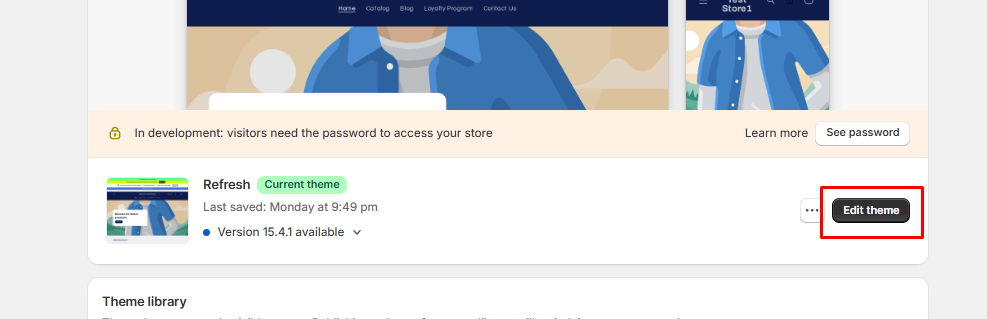
- Navigate to Online Store → Themes
-
Click Edit theme
-
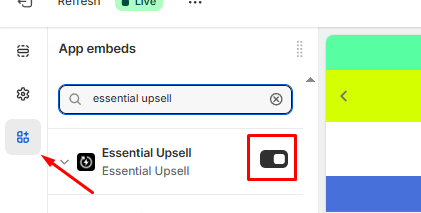
Open App embeds and enable Essential Upsell & Cross Sell
-
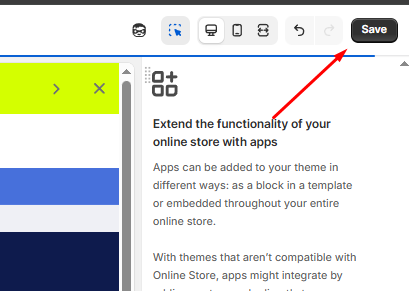
Click Save to apply your changes
Step 2: Create a Pop-Up Upsell Offer 🧠
- Open the Essential Upsell app
-
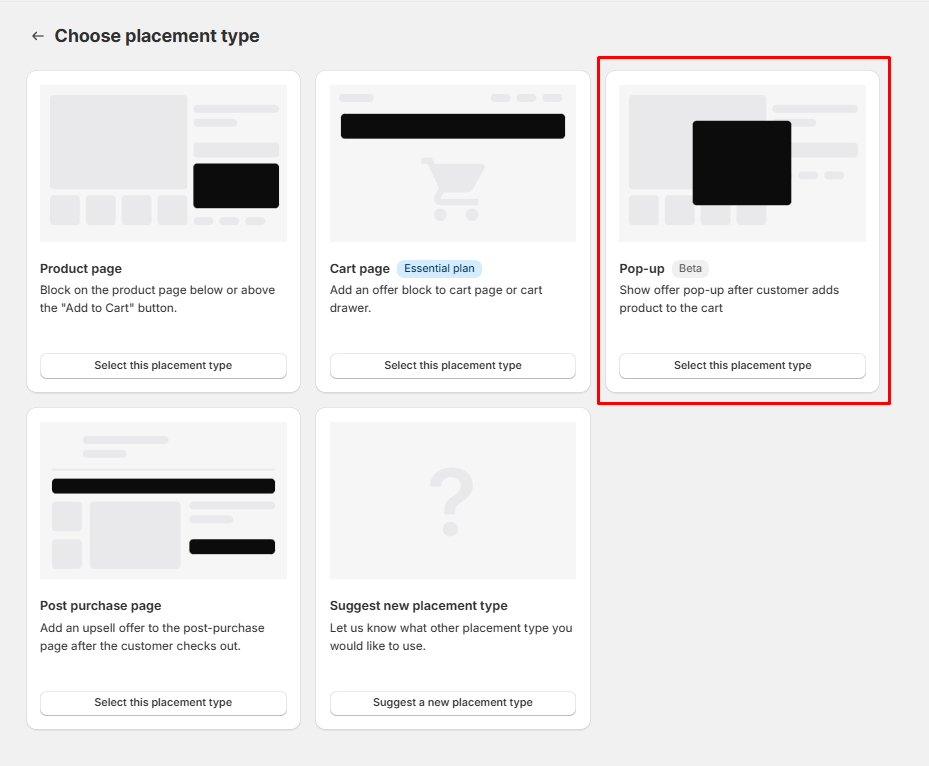
Click Create offer and select the Pop-Up type of upsell:
Select one of the available offer types:
- Cross-Sell
- Add-On
-
Frequently Bought Together
Configure your offer:
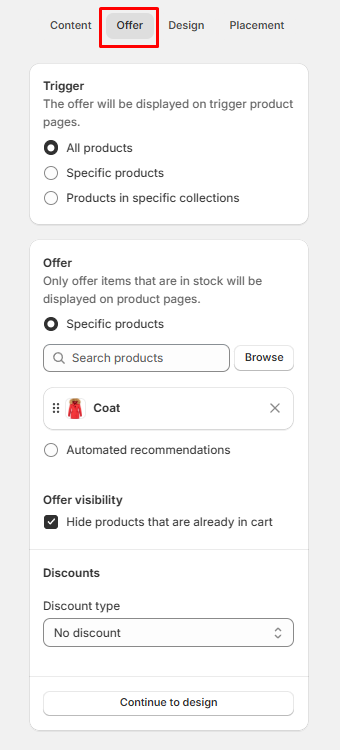
- Trigger products: Choose what product or cart action triggers the pop-up
- Offer products: Select which products appear inside the pop-up
- Discount (optional): Apply a percentage or fixed discount
-
Design & layout: Customize how the pop-up looks
- Choose the placement where the pop-up should appear:
- Product page (triggered on Add to Cart)
-
Cart page or cart drawer (triggered on Checkout)
Once the upsell is published, the pop-up will appear automatically when the customer performs the trigger action (Presses the "Add to cart" button or presses the checkout button in the cart).
Step 3: Test Your Pop-Up Offer 🧪
Before going live, always test your setup:
- Visit a product or cart that triggers the pop-up
- Click Add to Cart or Checkout on cart drawer or main cart page
Confirm that:
- The pop-up appears correctly
- Products are added as expected
- Discounts (if set) apply properly
Ideal Use Cases for Pop-Up Offers 💡
Pop-up upsells are especially effective when:
- Prompting customers with a last-minute offer when they click Add to Cart
- Suggesting an upsell when the customer clicks Checkout from the cart page or cart drawer
- Capturing attention at key decision moments without interrupting normal browsing
They work best when the offer feels helpful and relevant to the trigger product added.
Troubleshooting 🔧
If your Add-On upsell isn’t showing, please check the following:
- The app embed is enabled
-
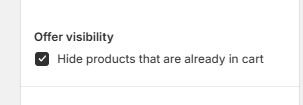
The products offered are not already in the cart if the "Hide products that are already in cart" feature is enabled on your upsell
- Trigger and add-on products are:
- In stock (or inventory tracking disabled)
-
Published and accessible from the live store
You can also check this guide for more in-depth troubleshooting Upsell Not Showing: Main Reasons and Solutions
If the issue persists, feel free to contact our support team and we’ll be happy to help!